
The post-processing is structured similarly to the audit execution, see Questions/ requirements. The language can be set in the table header and the list of questions can be searched, sorted and filtered.
All previously noted findings are listed here. The pre-set sorting is based on the severity of the findings.
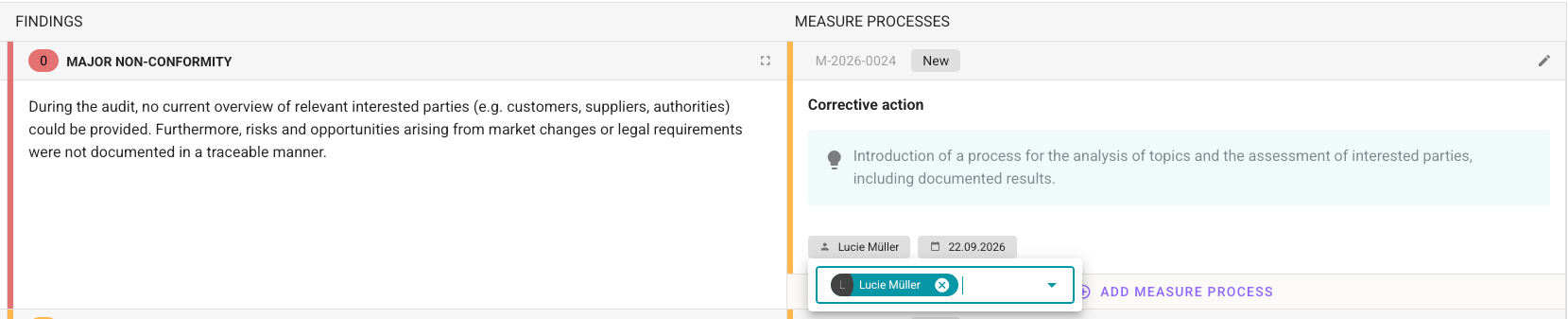
A new feature is the ability to add measure processes. These can be fully edited and tracked in the AuditCloud. More on this in the chapter processing of measures.
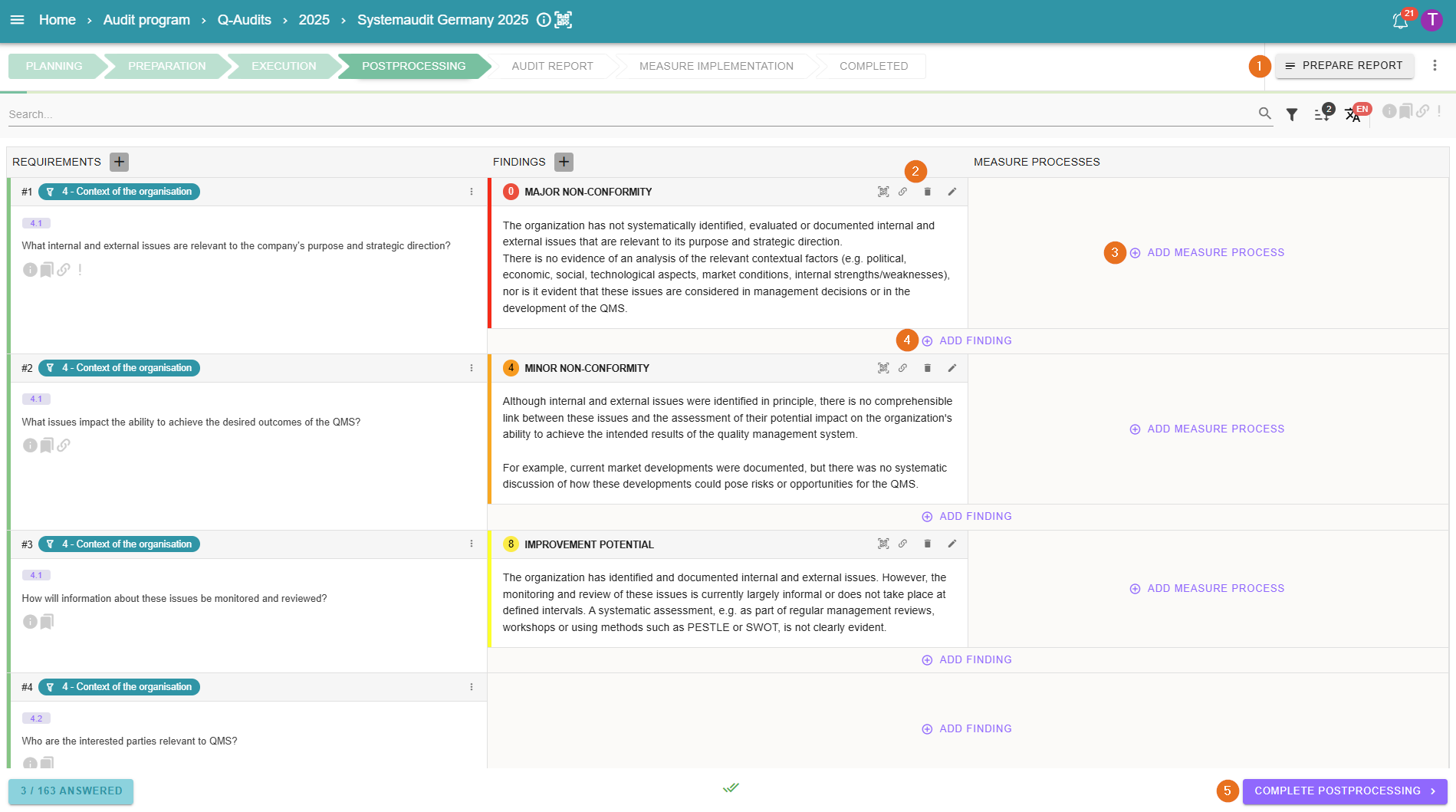
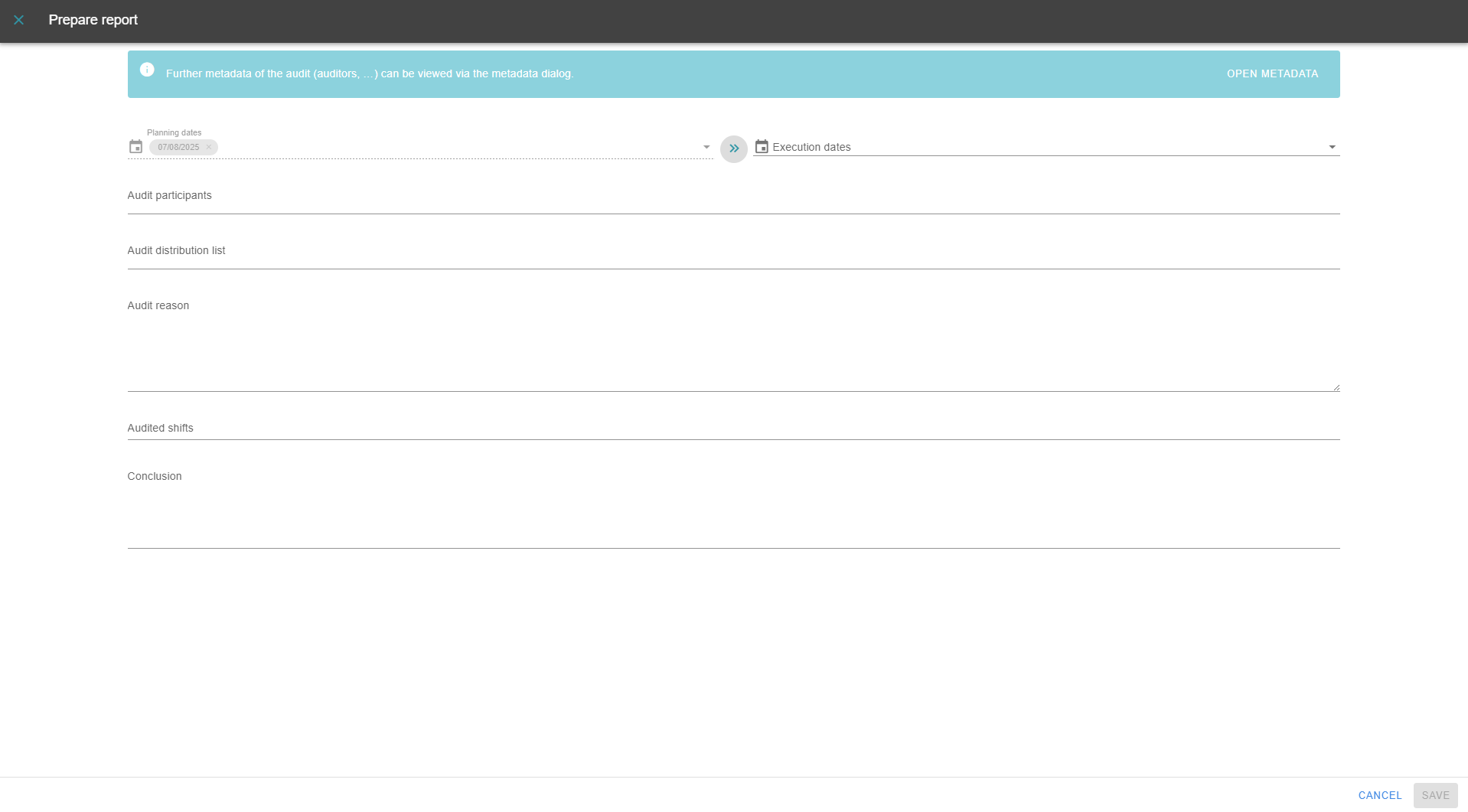
1 - Prepare report
Further data can be stored for the next step “Report”. For example, a conclusion or the participating persons and an audit distribution list. You can find more information in the chapter audit report.
This step is also necessary in order to finish the audit post-processing.
2 - Edit and delete findings
You can either delete existing findings using the garbage can or edit them using the pencil. Click on the pencil to open the familiar findings editor. There is also an option on the far left to obtain a QR code and a link to the corresponding finding. Findings can be moved to the right to assign them to another requirement if necessary.
3.1 - Add measure processes
In the AuditCloud, a distinction is made between immediate, preventive and corrective actions. Immediate actions have a shorter workflow. The actual implementation of a measure takes place in the step processing of measures. The workflow is also described in more detail there.

3.2 - Measures-policies
In the event of deviations, measures-policies can be stored upon request. This means that measures must be created if a specific deviation has been documented. Measures can then be created automatically.
We distinguish between “recommended” and “required” measures. Recommended measures are marked with an “orange i”, while required measures are represented by a red exclamation mark.
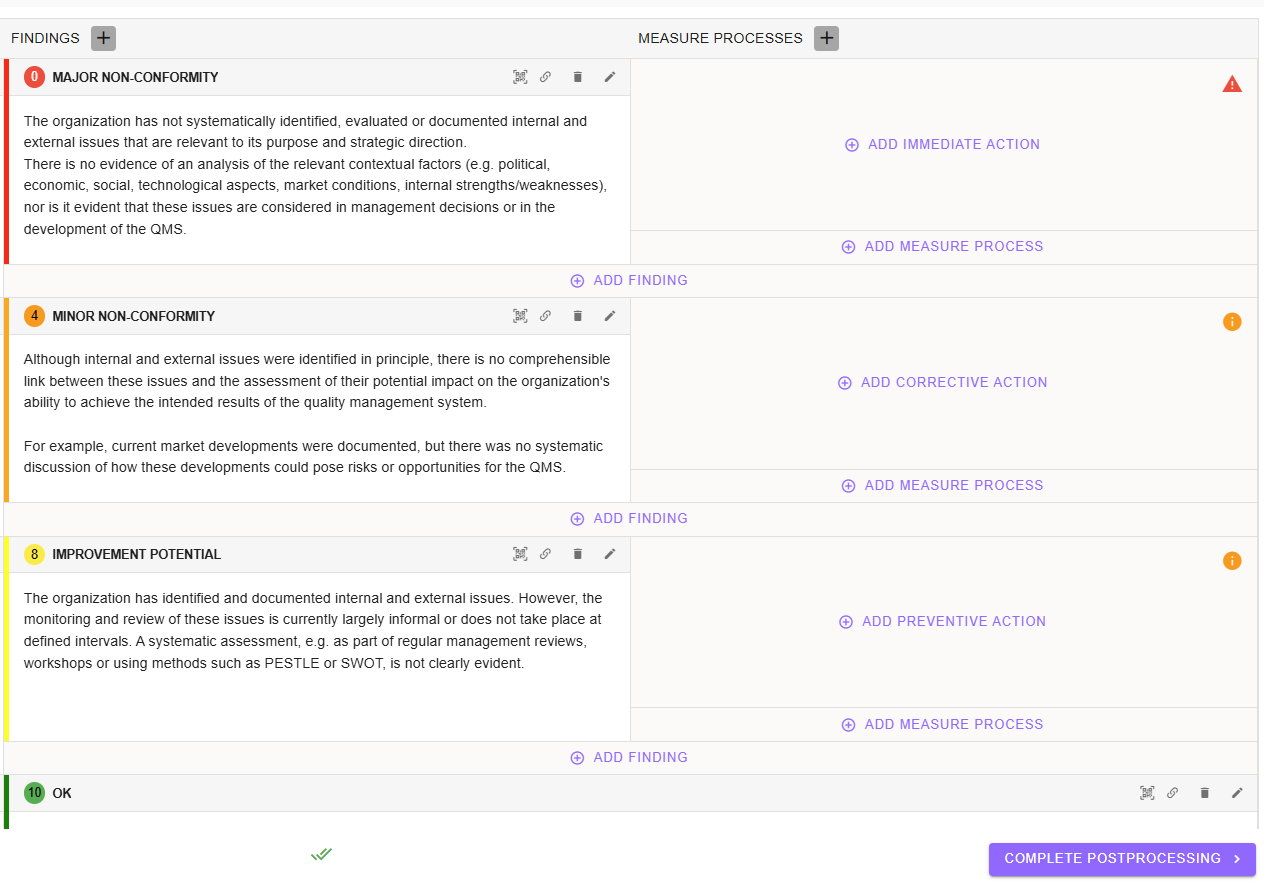
Regardless of whether it is an immediate, corrective or preventive action, you can specify for each finding type whether it is desirable or necessary to complete an audit.
This is done in policy enforcement, where a distinction can be made between blocking and non-blocking. With blocking policy enforcement, the audit post-processing cannot be completed until all required measures have been created. Recommended measures are not mandatory:
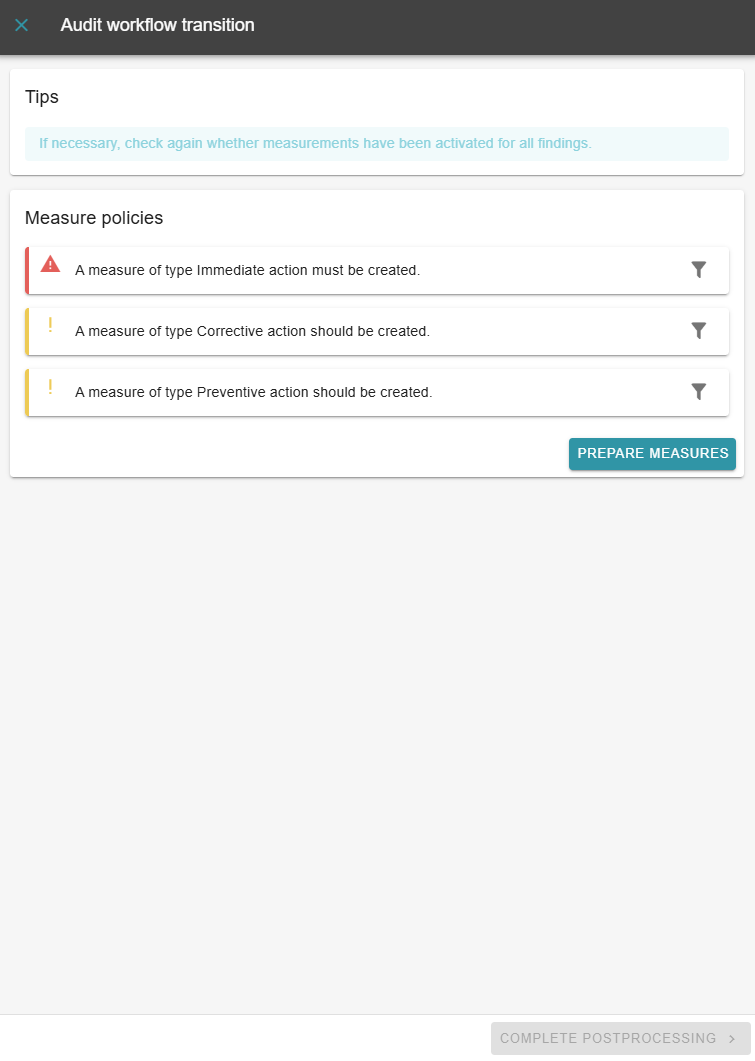
With non-blocking policy enforcement, the measures are displayed, but you can complete the post-processing without applying them:
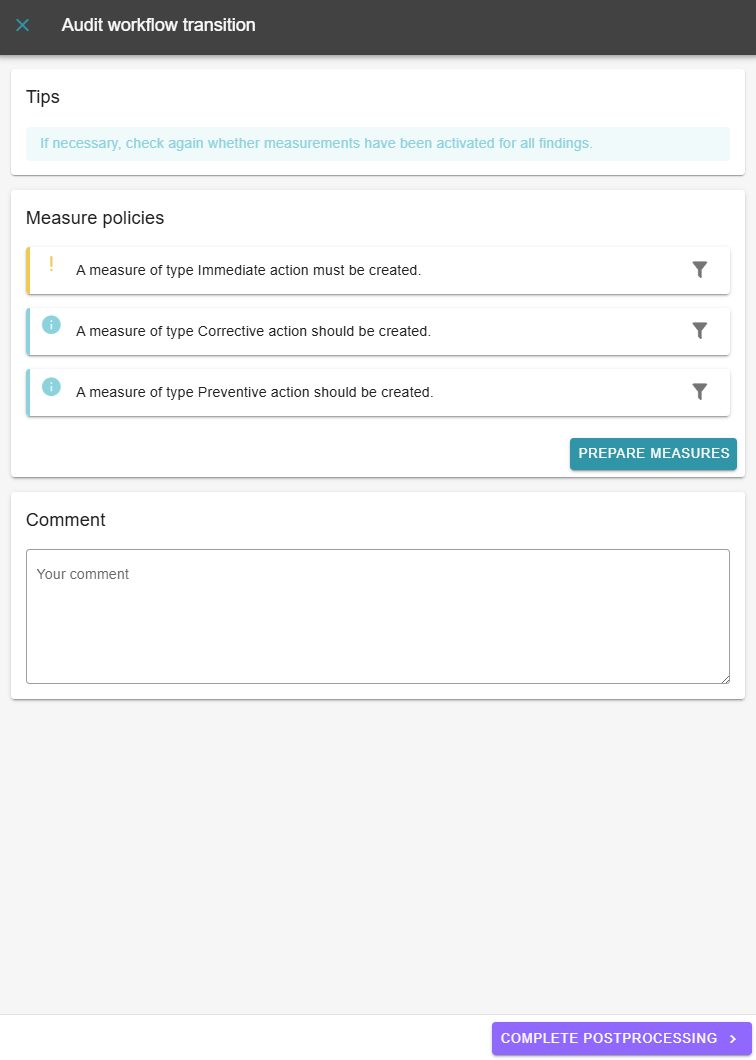
Clicking on the “Prepare measures” button opens a new window in which you can create the corresponding measures:
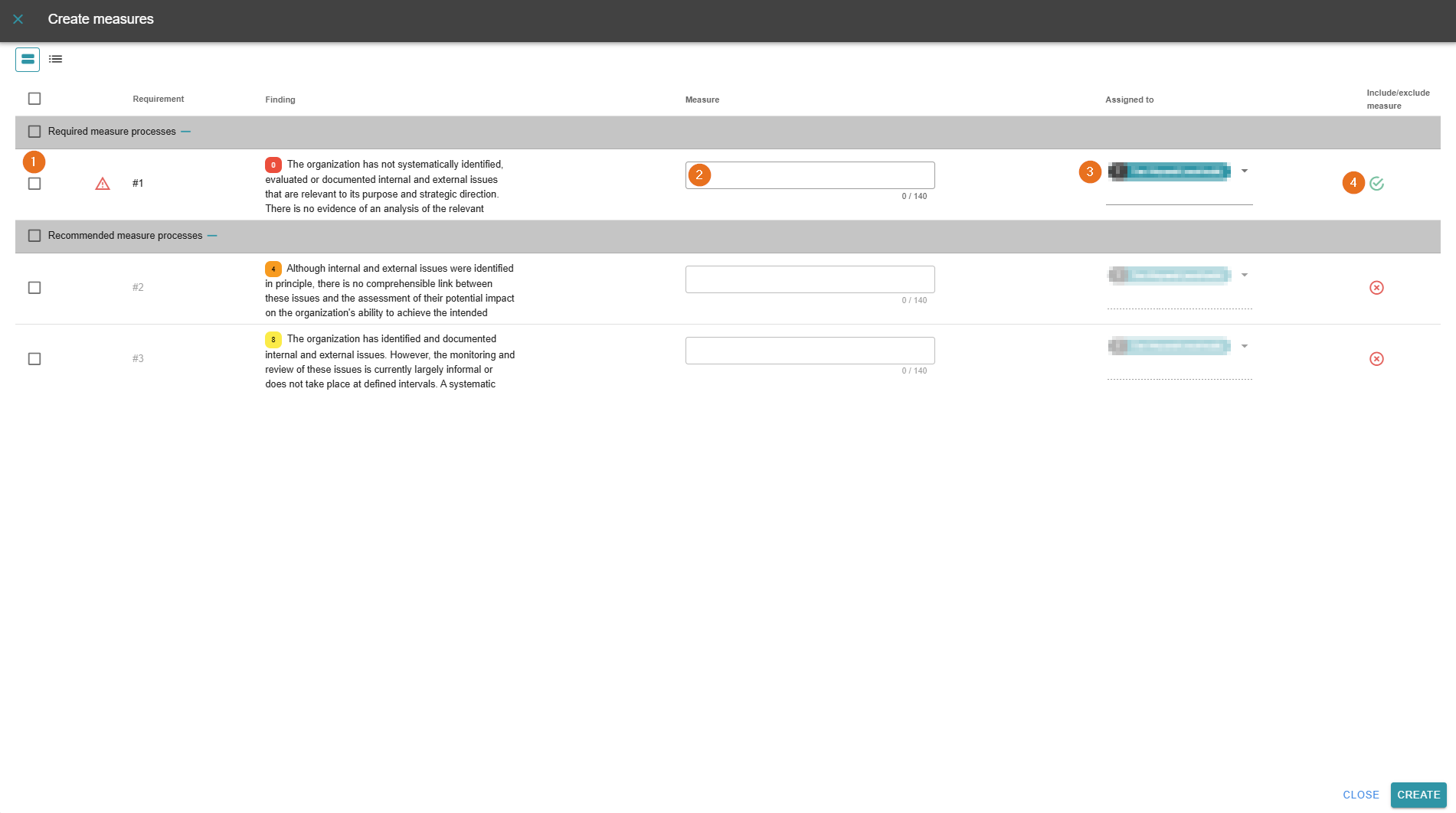
1 - Include or exclude measures
By clicking on the box to the left of the findings, individual or all measures in the “Required” or “Recommended” categories can be included or excluded. To do this, click on “Include” or “Exclude” in the bar that appears.
2 - Create measure
The corresponding text can be entered in this field for all included measures.
3 - Enter the person responsible for the action and the due date
Any AuditCloud user can be designated as the person responsible for the action. This allows them to assign actions when they are created. You can also quickly enter the due date.
4 - Include or exclude measures
The functions here are the same as those in
include or exclude measures, with the small difference that here the changes are not made via the bar, but directly by clicking on the arrow/cross.
4 - Add findings
If you notice anything else during the follow-up, you can simply make a note of it.
5 - Complete follow-up
Complete the follow-up by clicking the purple button.