
Login process
If you have been approved for external processing of measures or a self-assessment, you will receive an e-mail notification with all the necessary information.
The AuditCloud portal with the measure implementation can now be accessed via a direct link in the email or the access link/QR code in the AuditCloud:
For a more detailed introduction to the topic of measure implementation, please play the video.
Carry out the measure implementation
Once you have completed the login process, it is now possible to process the measures.

1 - Changing the language
Here you can switch between German and English.
2 - Search and filter measures
Measures can be searched by using the text field or filters. Filters include, for example, the author, measure types, finding types and more.
3 - Filter measures by ID
By clicking on “ID” in the top column, the measures can be sorted in ascending or descending order by their ID.
4 - Start measure implementation
The workflow for measures varies depending on the measure process. For example, an immediate action does not require a cause analysis but requires direct implementation. This can be seen in the root cause and measure description as well as in the measure status. If a red warning triangle appears next to a finding, this indicates that it is an immediate measure.
Clicking on one of the measures opens the measure editor for editing:
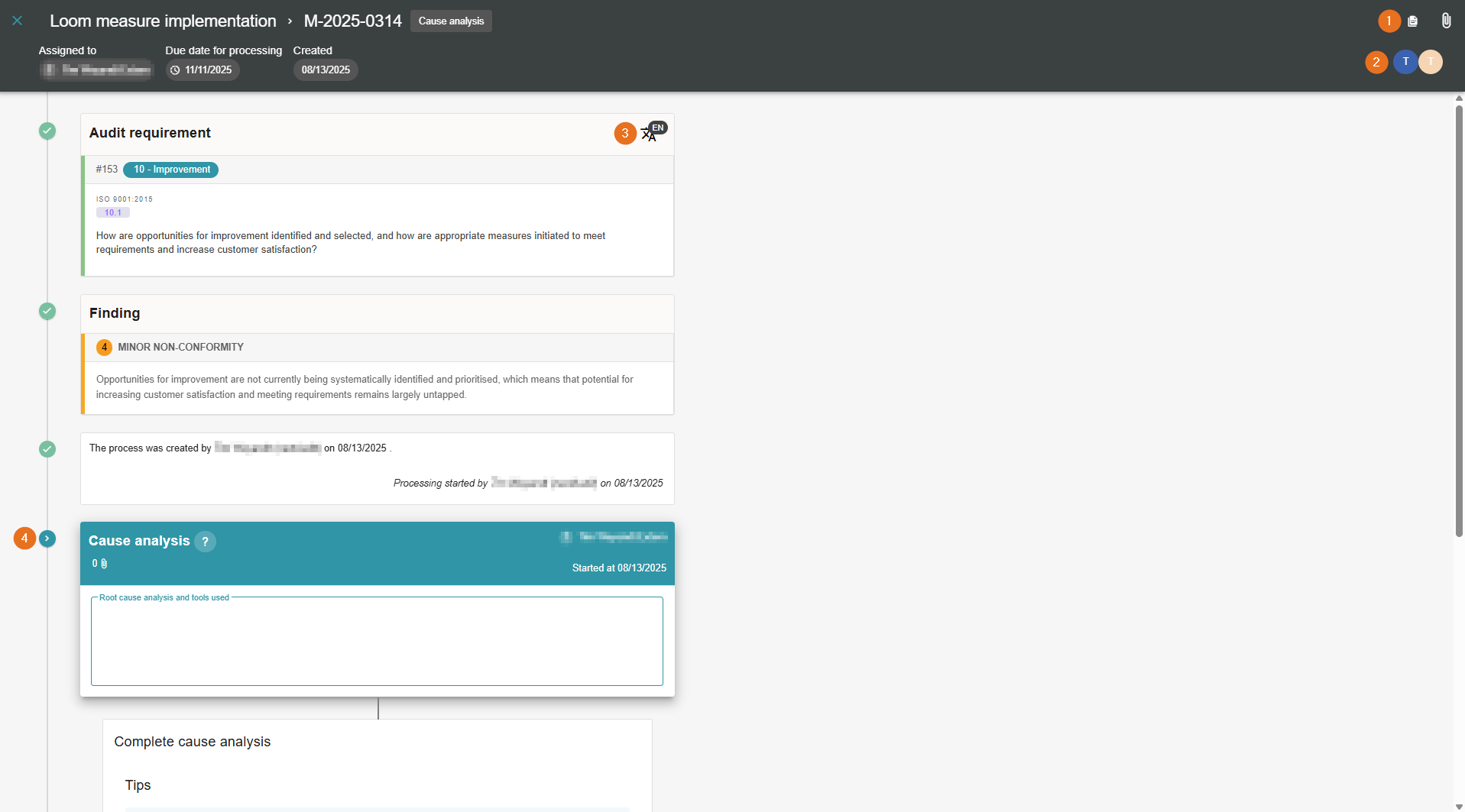
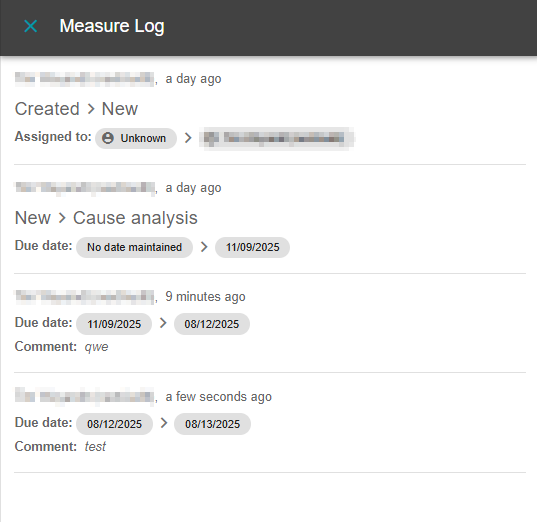
1 - Measure log and measure process attachments
Every step is recorded and logged in the measure log. This allows you to check who made which changes or edits and when:
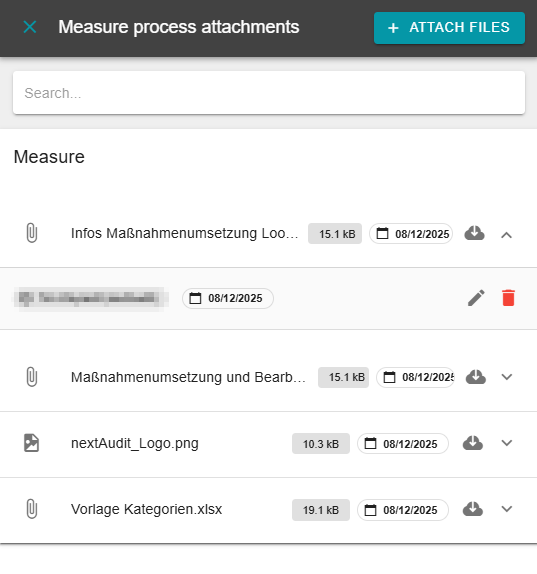
All attachments are listed together in the measure process attachments. All attachments can be downloaded using the cloud to the right of the upload date. Clicking on the file opens another bar where the uploader can be seen. There, the file can also be deleted or commented on.
The “Attach files” button allows you to add further data.
2 - Display participants overview
Clicking on the icon below the measure log opens an overview of all persons involved in the measure. These include, for example, the creator, the auditor and the measure responsible:
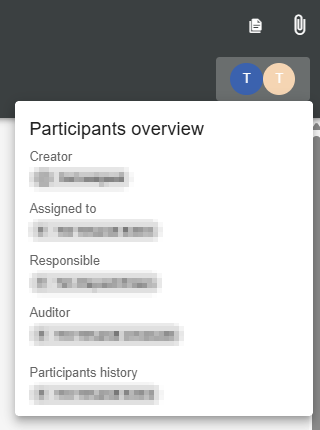
3 - Change language
As you already know from many areas of AuditCloud, you can also switch between German and English here.
4 - Running through the measure process
If you scroll down, you will see the next steps in the measure process. You can see which steps are still pending and who is currently performing them:
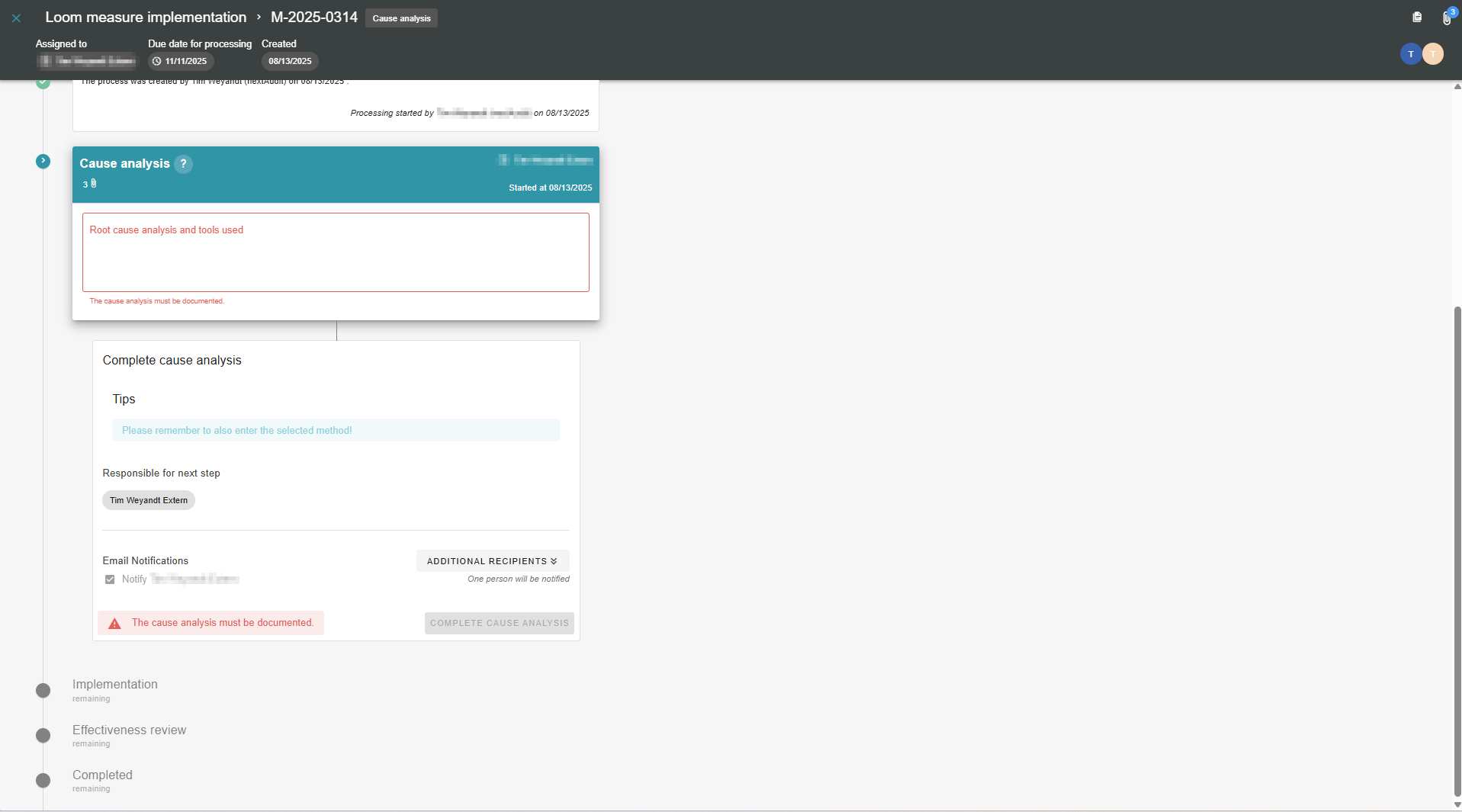
You can also see the current status of the corresponding measure in the measure implementation dashboard.
By default, a corrective action requires a root cause analysis, implementation, and effectiveness review. A preventive action includes a proposal (whether implementation should be rejected or started), implementation, and an effectiveness check, while an immediate action only includes implementation and the effectiveness check.
In general, each step is assigned a free text field in which information can be recorded. Emails are sent automatically after a step is completed. Additional recipients can also be notified:
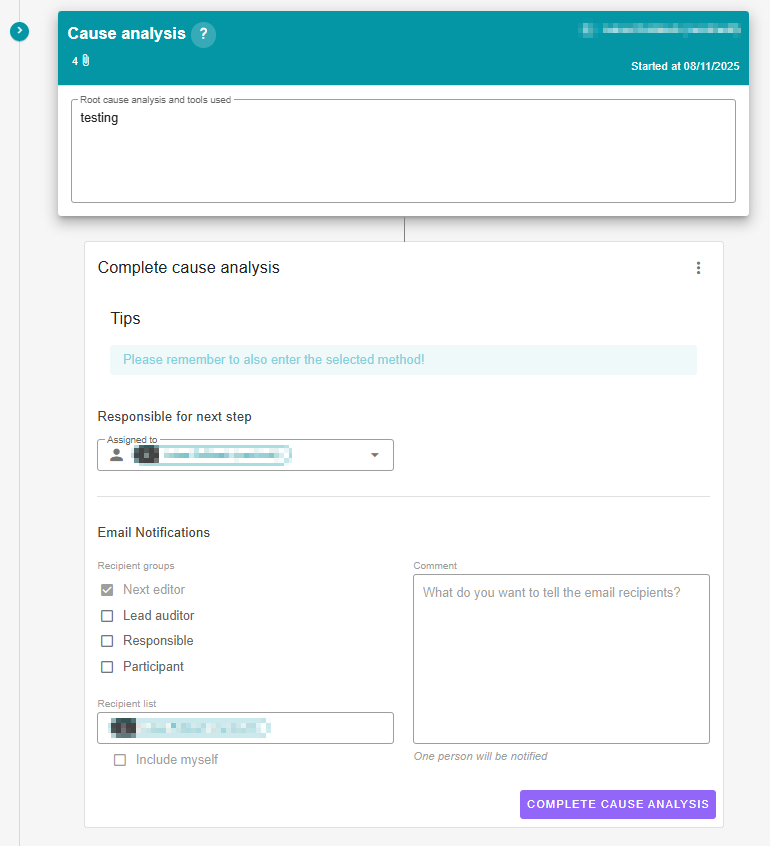
Clicking on "Complete..." completes the respective step.
5 - Cause and measure description
As already mentioned different steps are required depending on the measure process. Once the measures have gone through the corresponding steps/status, the results are displayed in these columns.
6 - Measure status
Here you can see the current status of the measure or how far its processing has progressed.
7 - Due date of a measure
The “Due date” column shows how much time is left before the measure must be implemented. In addition, colour coding is integrated. Overdue measures are marked in red. In addition, the measures are marked to indicate whether they are already due. Measures that are due soon are highlighted in orange. All other measures that are on schedule are displayed in green.
8 - Person responsible for the measure
This column shows the user to whom the measure has been assigned.