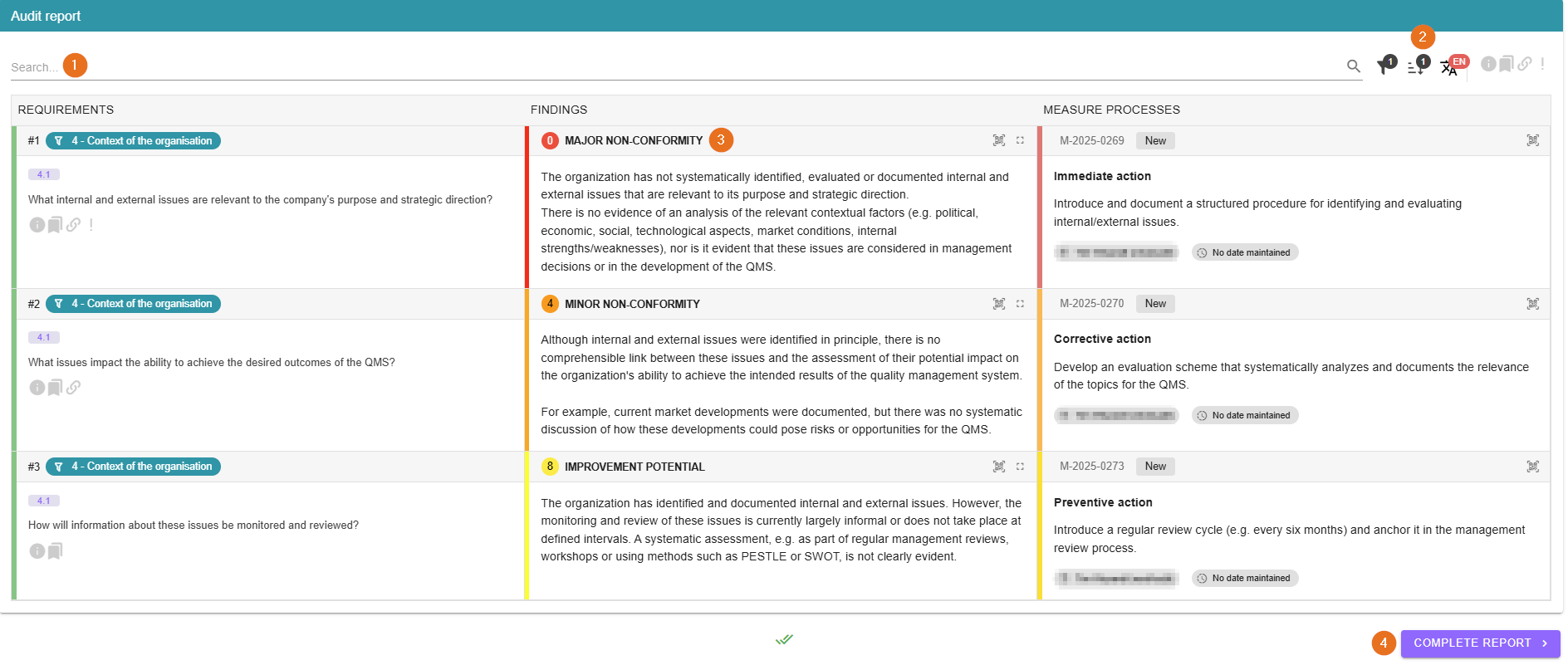
The audit report includes a list of all findings with the corresponding proposed measures.
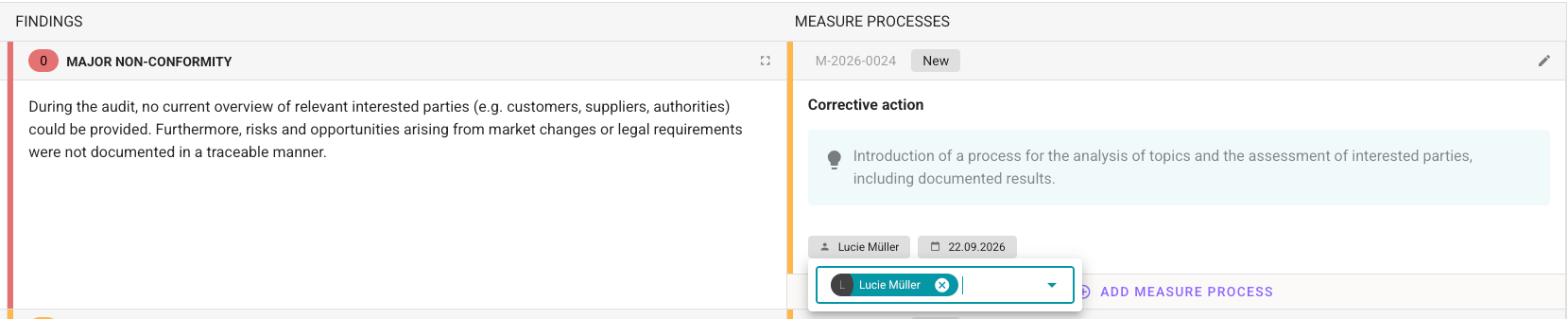
During the reporting period, proposed actions, action assignments, and due dates can be easily and quickly updated.
1 - Search requirements
The correct requirements can be easily found using the text search. You can type in your text by clicking on the bar.
2 - Filtering, sorting and more
Sorting, filtering and language changes always have the same icons and should be familiar to you from the audit execution, for example. You can use the icons to the right to show and hide various information.
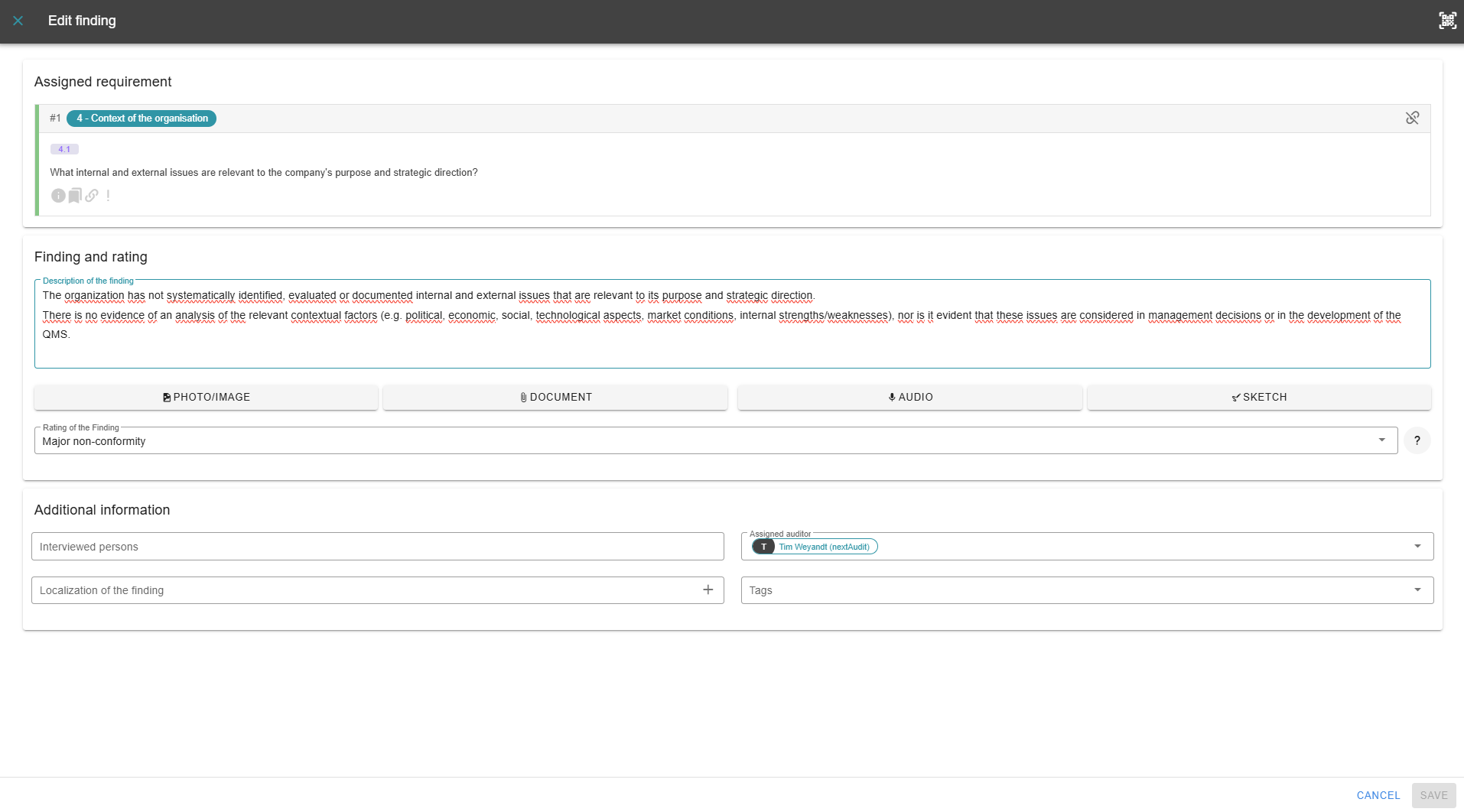
3 - Edit findings
Before the report is completed, you can click on the texts to edit the findings one last time:
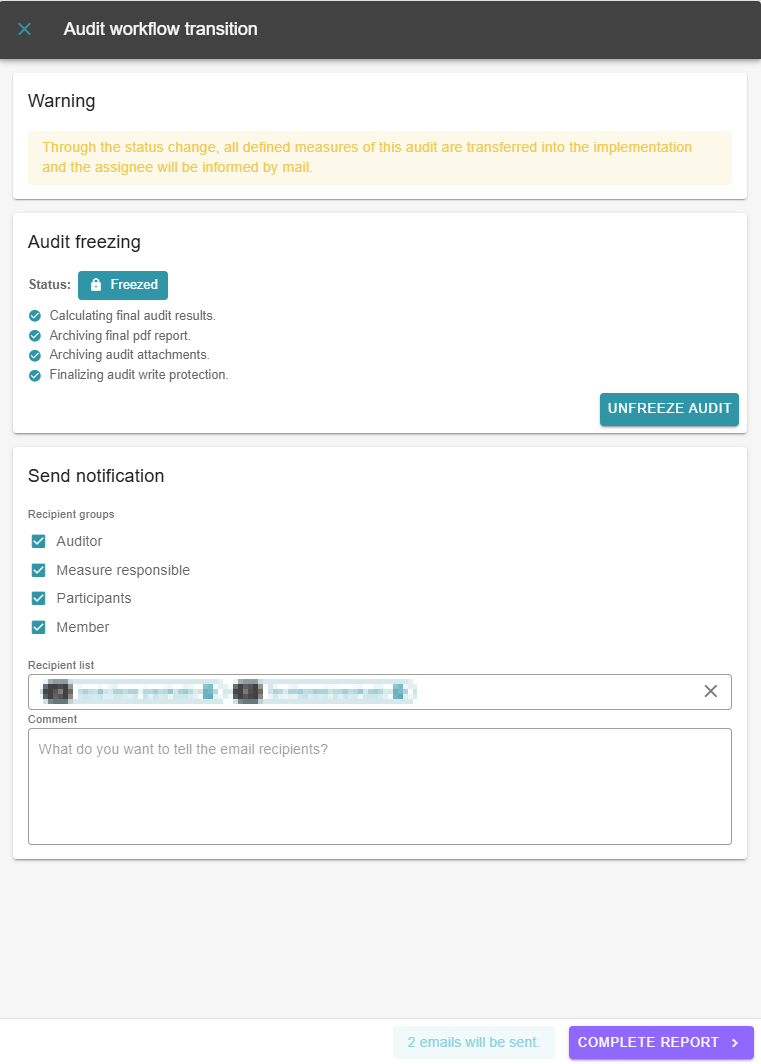
4 - Complete report
The purple button in the bottom right-hand corner can be used to finally close the report after the last edits have been made.
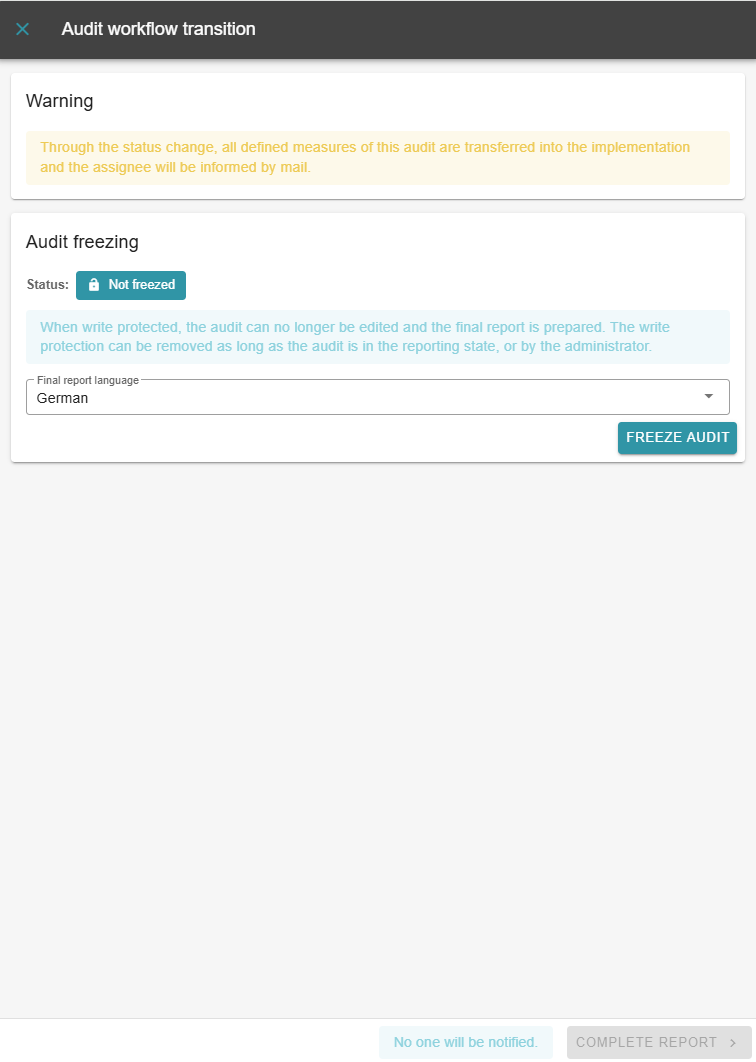
Here you see the following window:
1 - Activate write protection
To access the measure implementation, you must first activate the write protection for the report. After changing the final report language, click on the “Activate write protection” button. If no signatures are required to complete the audit, you can finalize the audit directly by clicking on the “Freeze audit” button.
2 - Request missing signatures
Upon request, an additional signature gadget can be configured. Among other things, this prevents the report from being closed prematurely before all necessary signatures have been obtained:
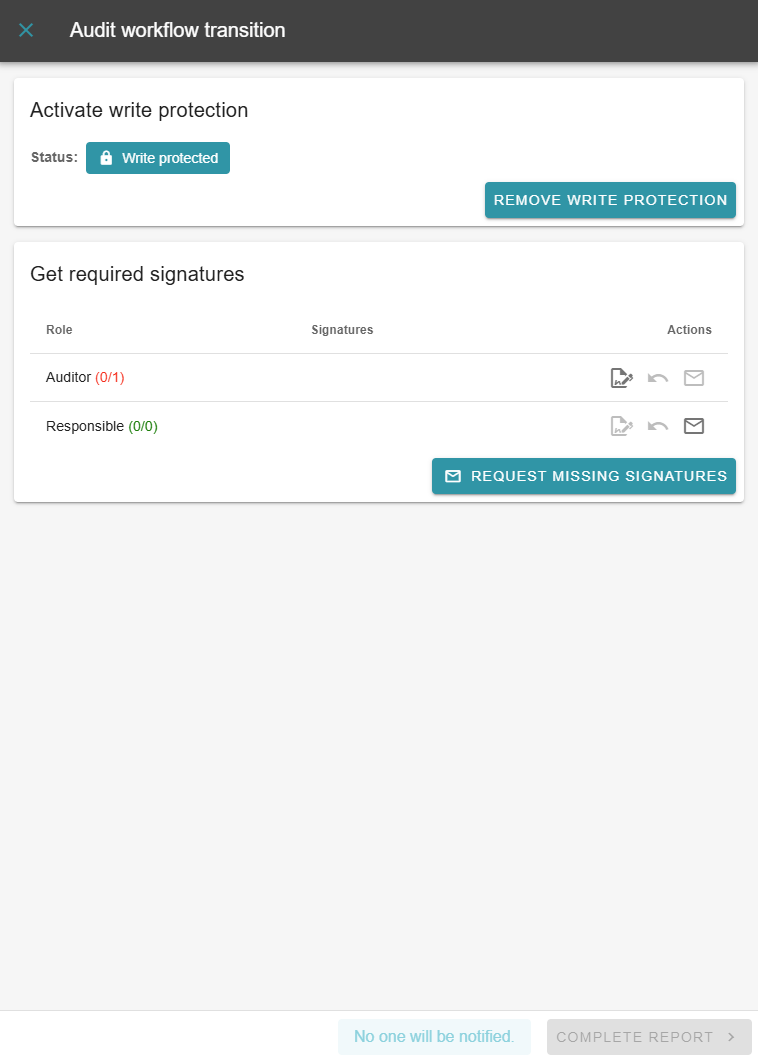
All signatures are also included in the PDF version of the report. As you can see in the image above, no signatures have been obtained yet. However, in this example, the auditor's signature is mandatory in order to complete the report (highlighted in red). The measure responsible person also can sign the report but is not required to do so.
Once all the required signatures have been obtained, the audit can then be freezed:
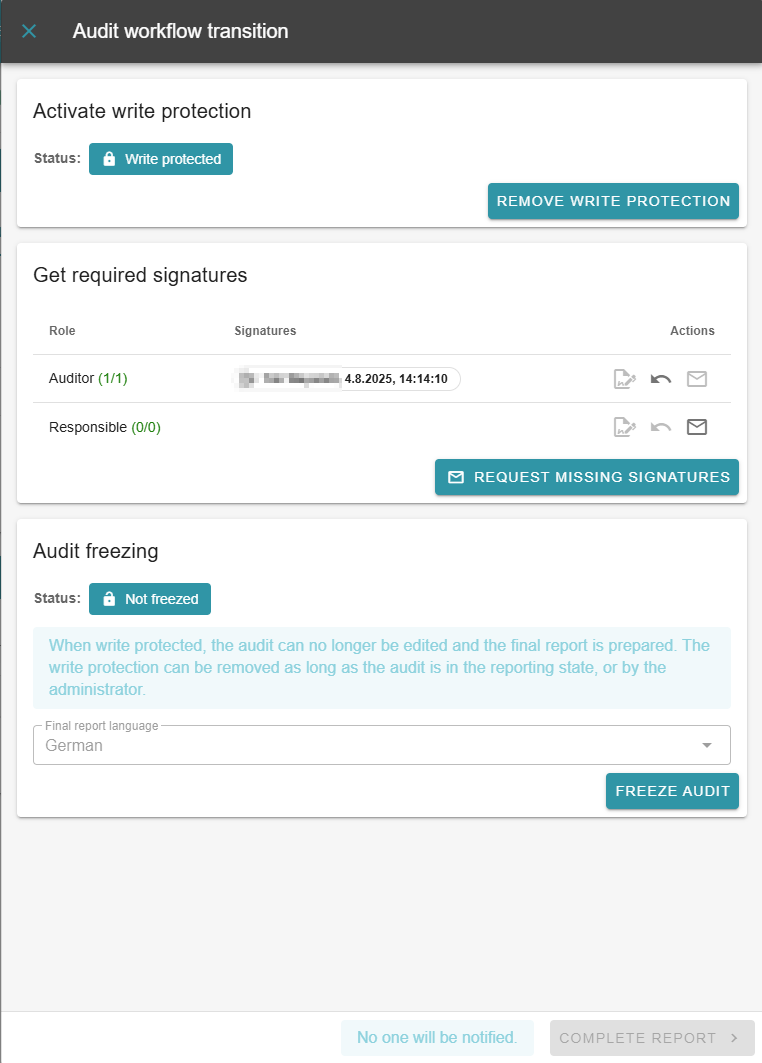
Important: The freezing of the audit can be reversed. However, this will remove ALL signatures.
3 - Set notifications
After finalising, you can either cancel this one last time before processing measures or complete the report and send a message to the specified recipient groups. They will then also receive the report as a PDF file by email. However, notifications do not have to be sent if there is no need to do so.