
Your audit is evaluated in this state. All the information presented here can also be downloaded as a PDF file. The overview of all measures can also be saved locally as an Excel file. More on this under Export checklist or view interim result .
Audit summary
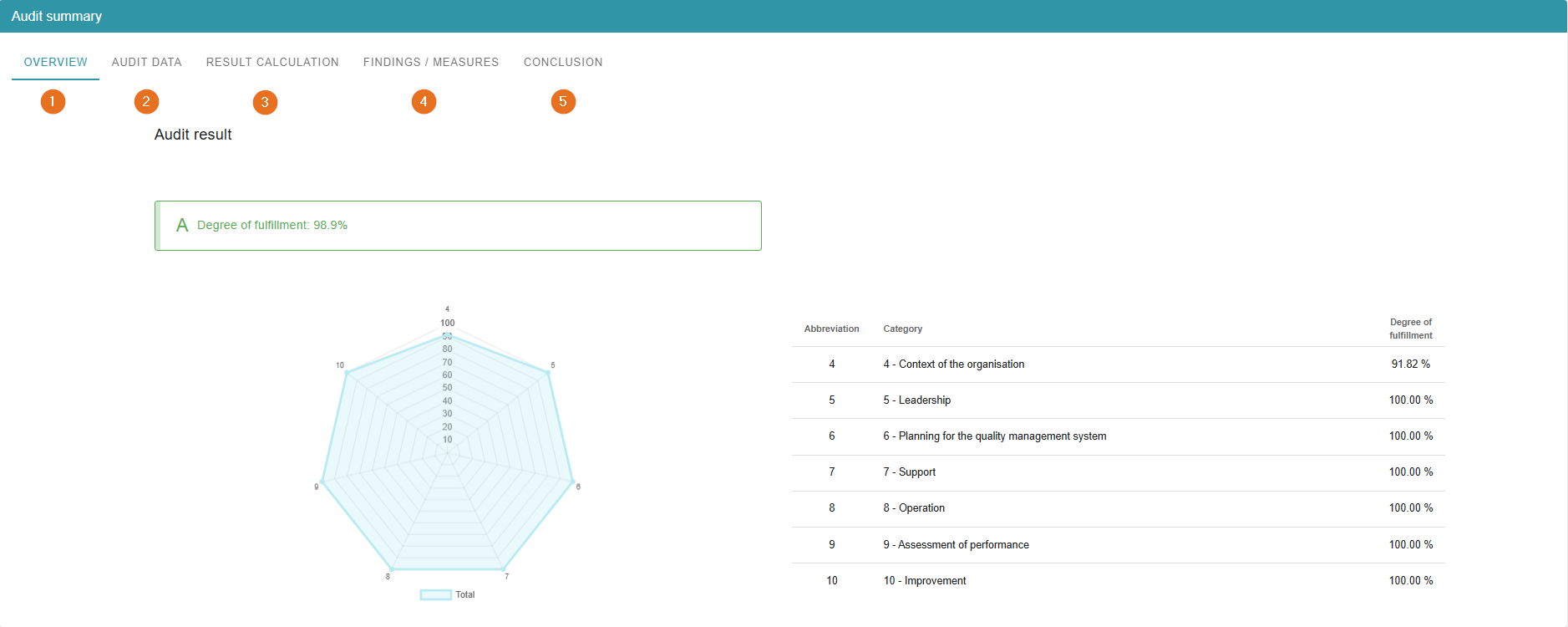
1 - Audit result in the overview
Your audit result is listed in the overview based on the categories. The degree of fulfillment is then calculated from the average of the categories and displayed. In the AuditCloud, it is possible to customize the calculation of the result to your needs in many ways or to disable it all together.
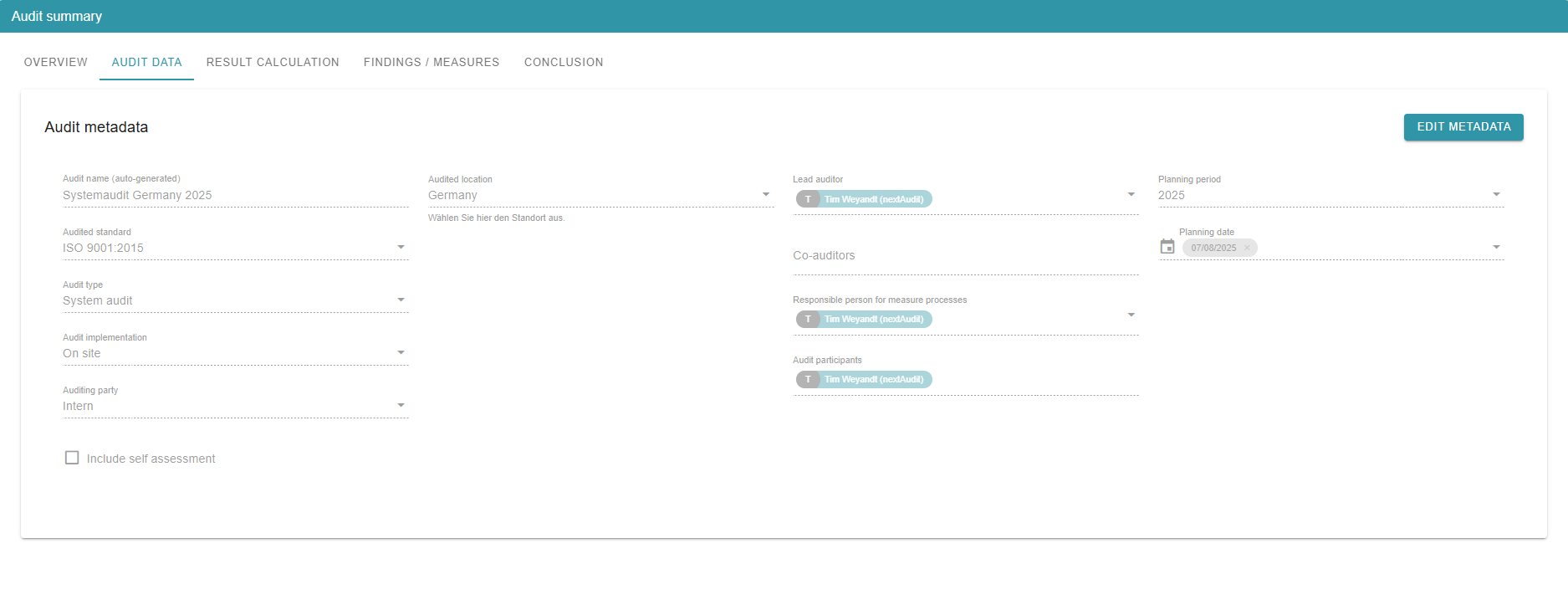
2 - View audit data
The metadata entered in the audit planning can be viewed again here. You can find more information on audit planning at planning .
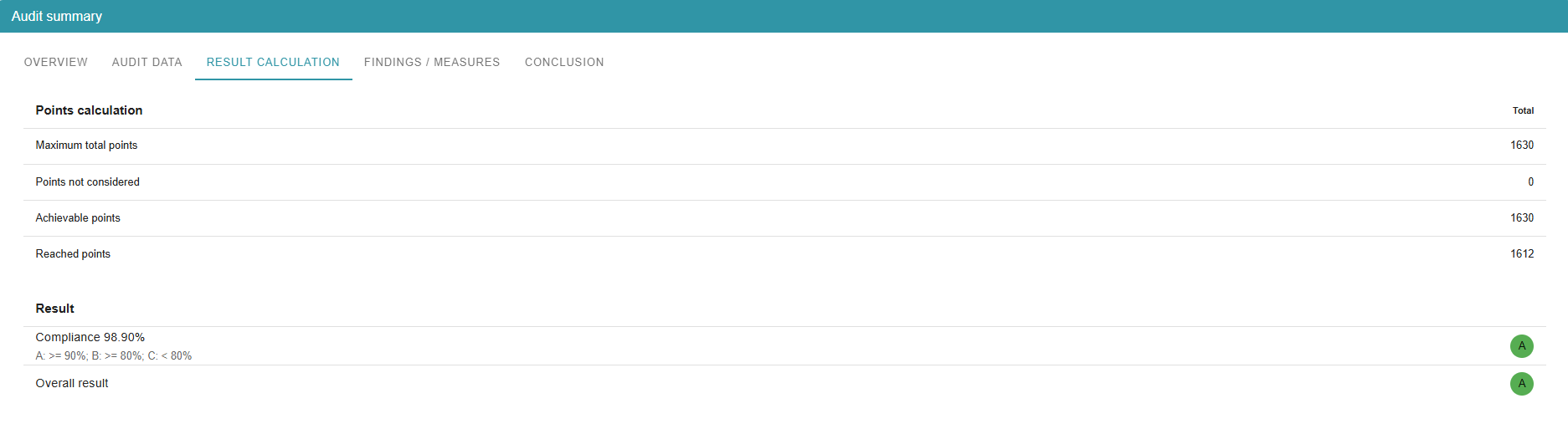
3 - Show calculation path
Here you can see the points achieved. Any grading rules can also be displayed in this tab, for example if knockout questions have not been fulfilled or a maximum number of deviations has occurred.
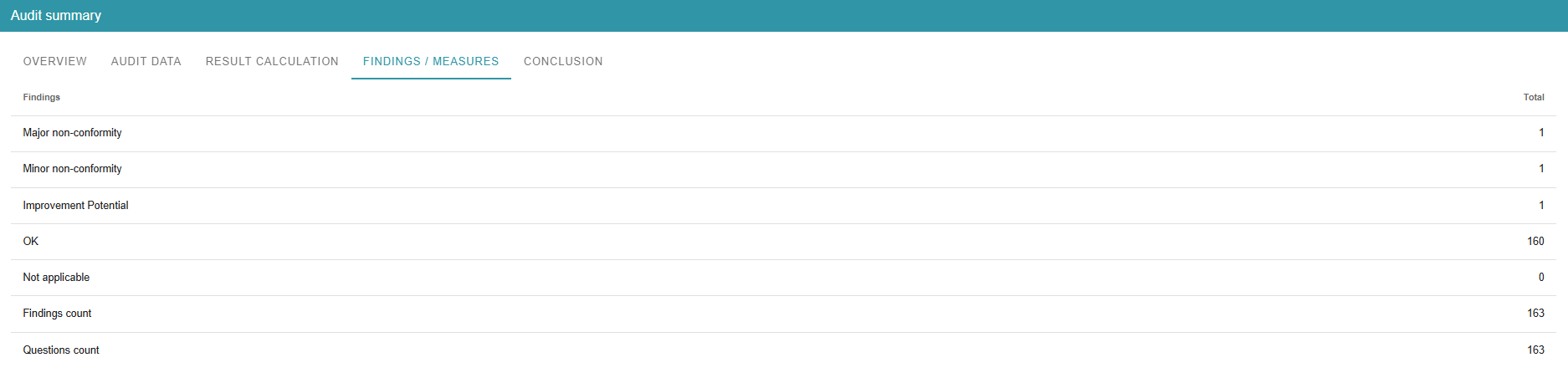
4 - Key figures for findings and measures
Under findings/measures you will find a series of absolute key figures, such as the number of major and minor deviations, as well as the number of findings and requirements in general.
5 - Writing the audit conclusion
The audit conclusion is used to summarize and write down the key findings of the audit. In the last tab, you can simply start writing by clicking on the green pen or in the text field.

The audit conclusion is required if you want to switch to the implementation of measures. The AuditCloud reminds you of the conclusion if it has not yet been written at the time the report is completed.