The purpose of signatures
Signatures serve to prevent premature completion of the report unless all required signatures have been obtained. Audit reports can therefore only be sent once they have been fully approved.
Depending on the settings, the signatures you provide can then be displayed in the PDF version of the report.
1 - Adding signatures
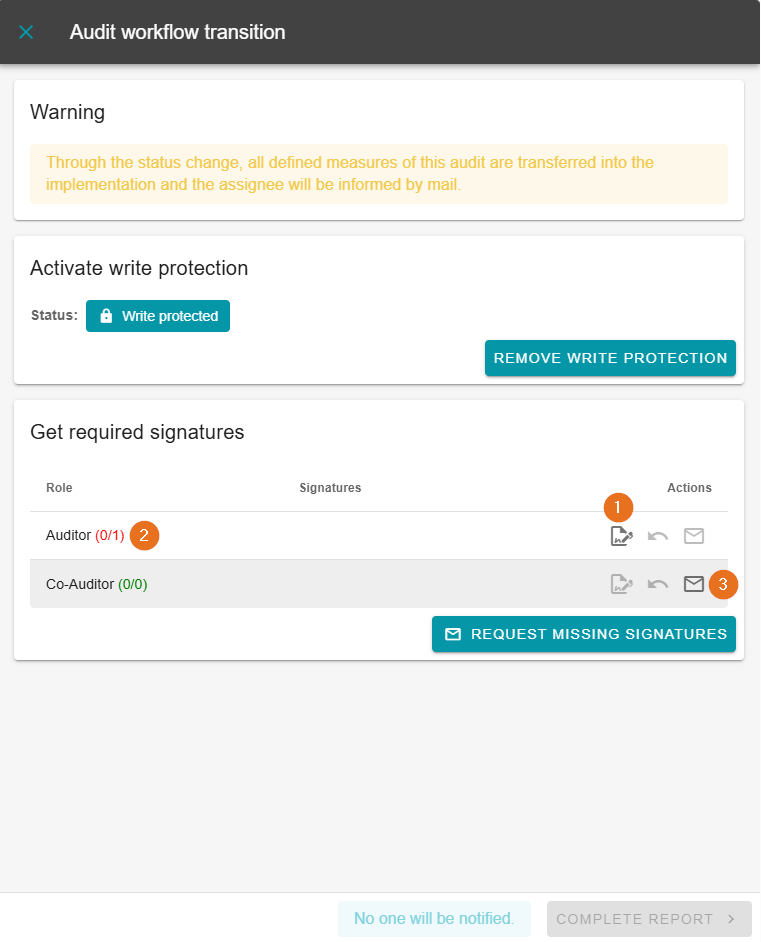
To add signatures, navigate to the “Complete report” button in the lower right corner.
The audit must be write-protected, otherwise it cannot be signed. Click on the “Sign” button under “Actions”. There you can also delete or request signatures.
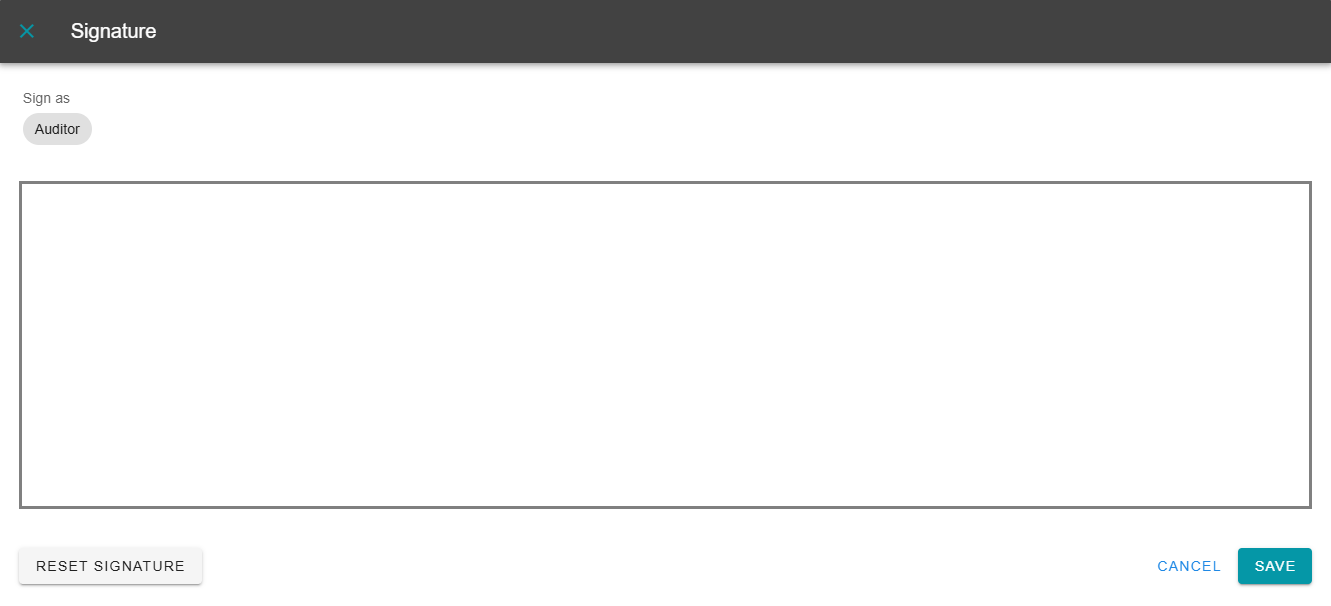
After clicking on “Sign”, a window will open with a field in which you can sign digitally with your mouse. The signature can also be reset if necessary. Save when you are finished.
2 - Required and non-required signatures
As you can see in the image above, “Obtain signatures”, the auditor has a red mark (0 out of 1), while the co-auditor has a green mark (0 out of 0).
This is because the auditor's signature is mandatory in this example in order to complete the report (-> configured accordingly in AuditCloud). The co-auditor can sign voluntarily here, but their signature is not required to complete the report.
Once all required signatures have been obtained, the audit can then be finalised.
3 - Request signatures
If you want to request the co-auditor's signature in this example, even though it is not required to complete the report, click on the third action field with the message icon.
Important: Do NOT use the large green “Request signatures” button at this stage, as it is in maintenance mode.
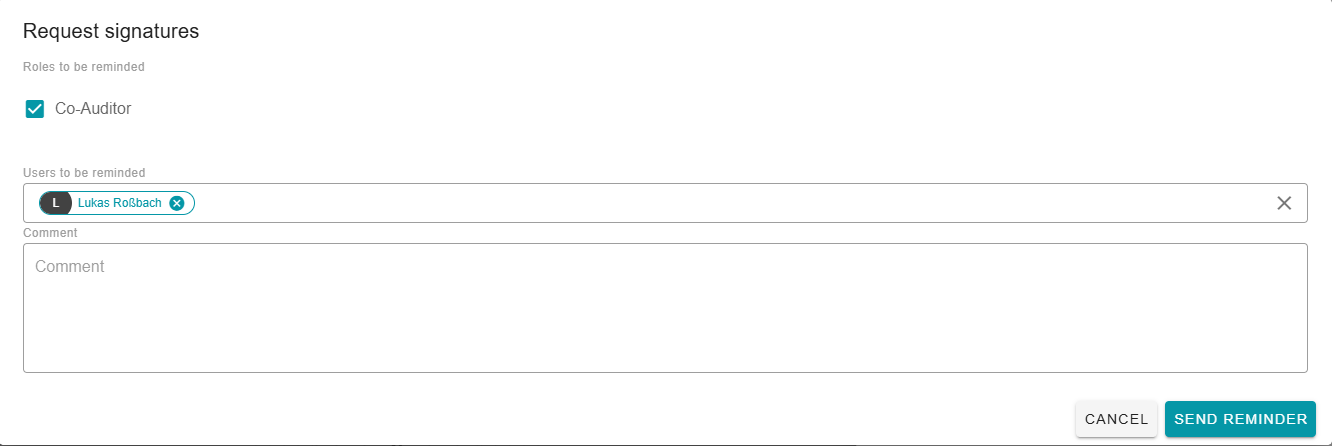
The roles to be reminded can be selected by checking or unchecking the box, and a reminder including a comment can be sent by email to the users.
Your signature is required
If you have received an email asking you to sign the report, you can follow the description in chapter 1 of this page to add your signature.
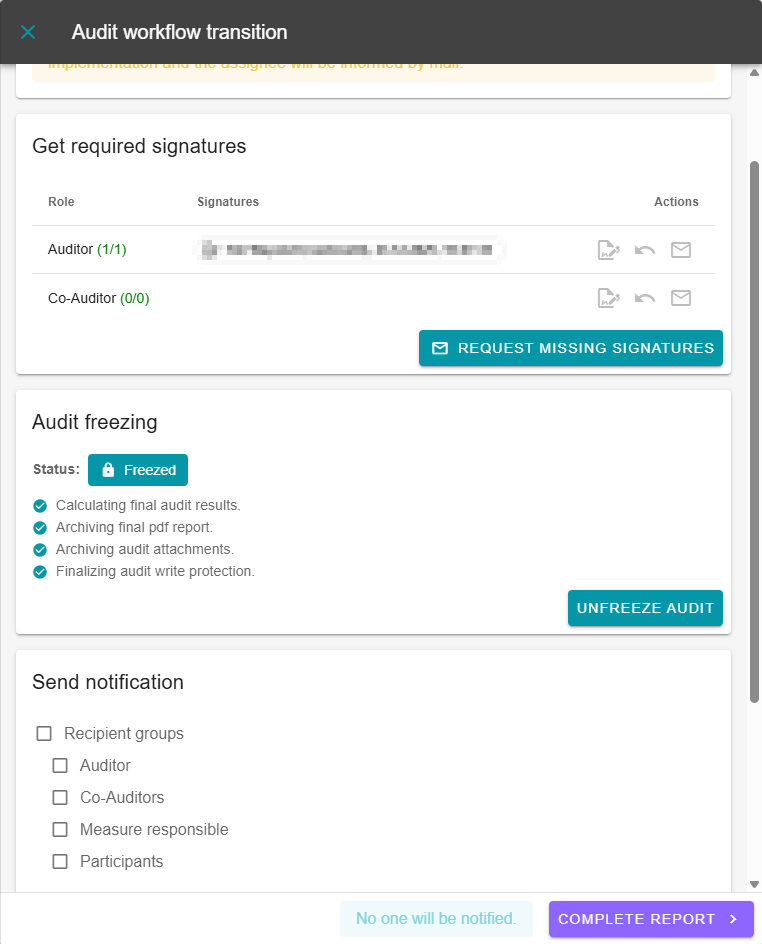
Once all the necessary signatures have been obtained, you can complete the report after freezing the audit.
Important: The audit can be unfreezed again. However, this will remove ALL signatures.