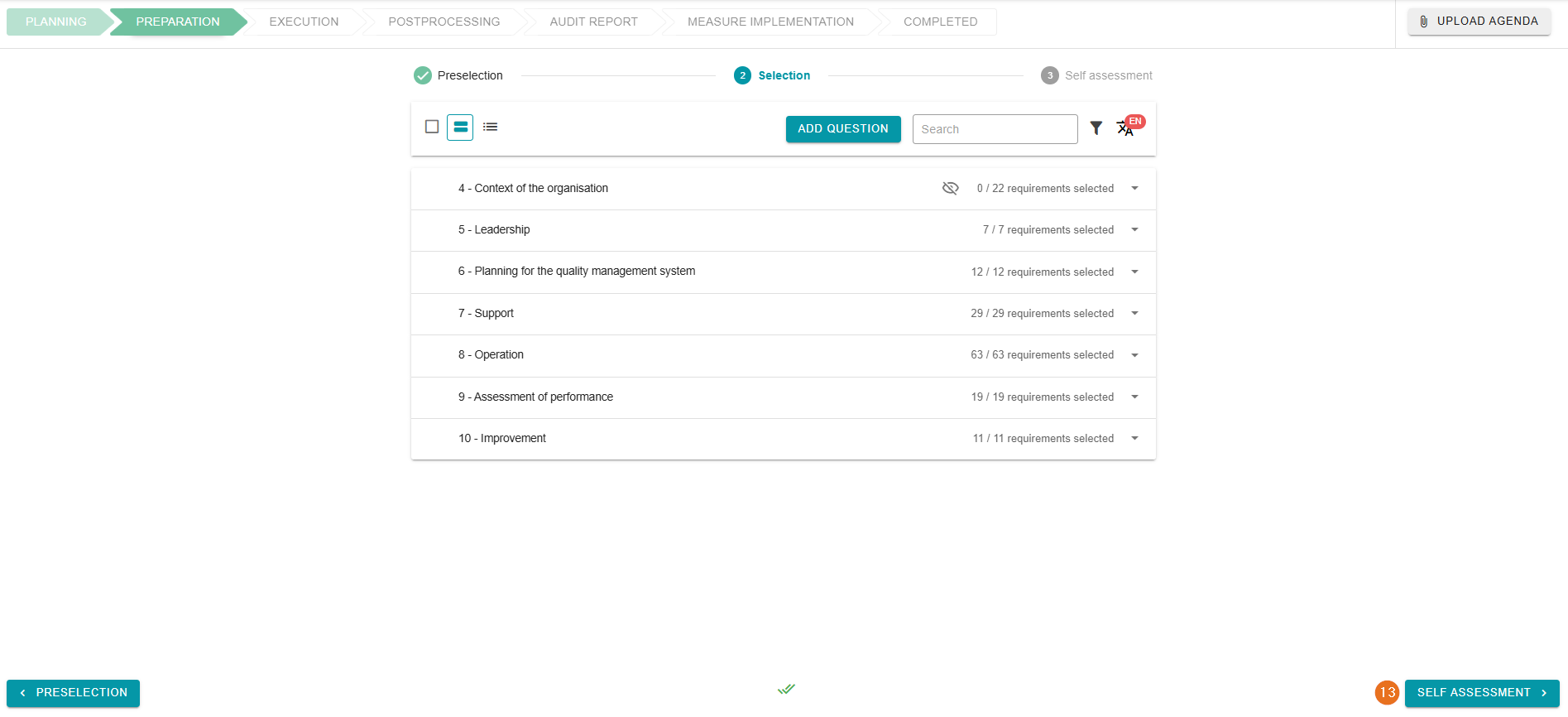
General
The next screenshot shows some editing options for the “selection” tab:
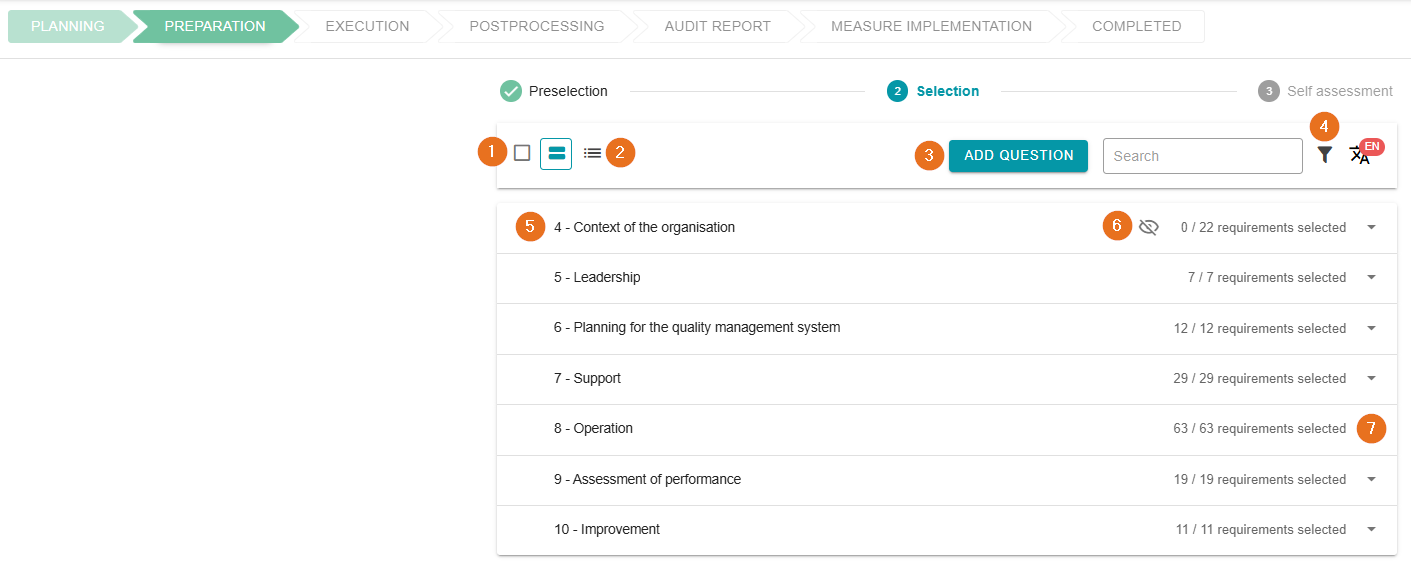
1 - Bulk selection
Easy way to select all categories. Subsequent actions are applied to all questions.
2 - List view
Here you can switch to the list view of all questions.
3 - Add new questions
By clicking on “Add Question” you can add individual questions which were not yet part of the question list:
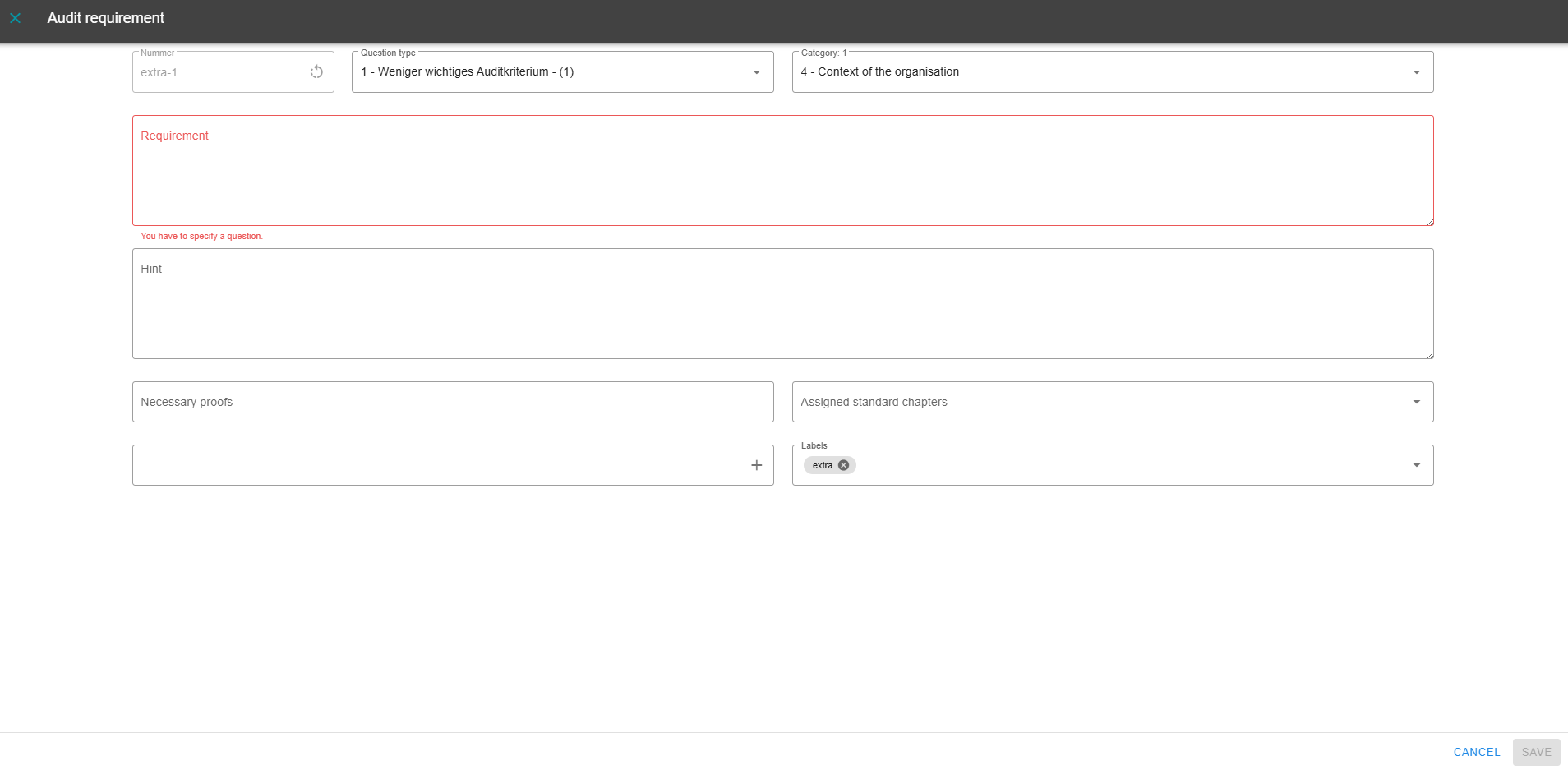
It is possible to select the question type, the category the question will be assigned to, the standard chapter and much more.
4 - Filter and search function
With the help of the free text search, questions are filtered out when a hit is found. By clicking on the filter symbol, you can filter according to categories or standard chapters.
5 - Category selection
An individual category can be selected here. The respective box is displayed when hovering over the respective category. As soon as a category has been selected, a function bar is displayed.
6 - Recognize included and excluded questions
The eye icon allows you to see at a glance whether a category has been partially included or completely excluded from the audit. As soon as a category is fully included, the eye is hidden.
7 - Show questions in a category
The individual questions in a category can be displayed here. You can also click along the line to expand a category.
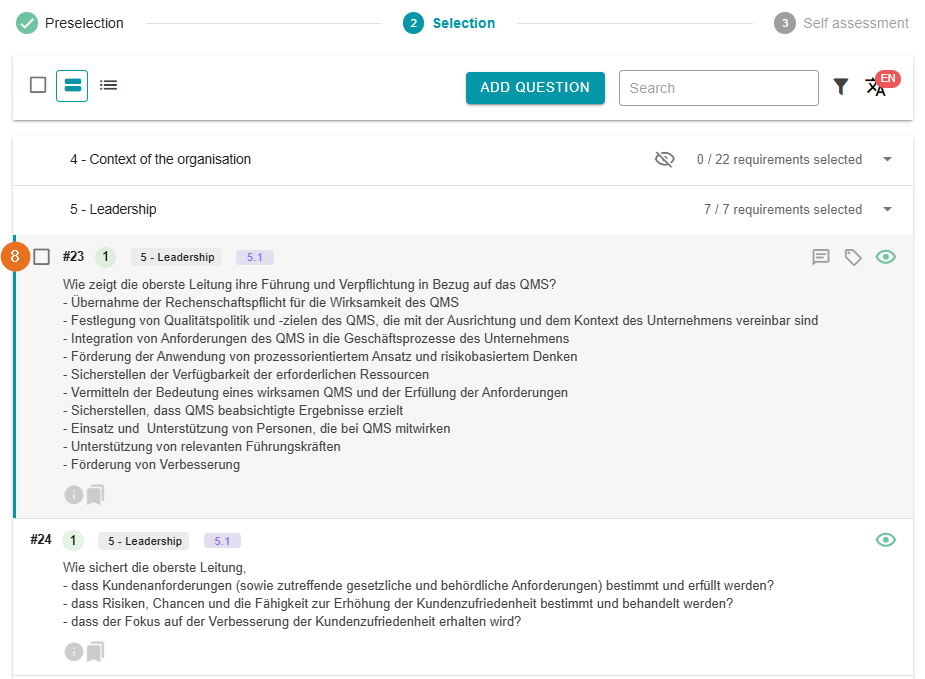
8 - Select individual questions
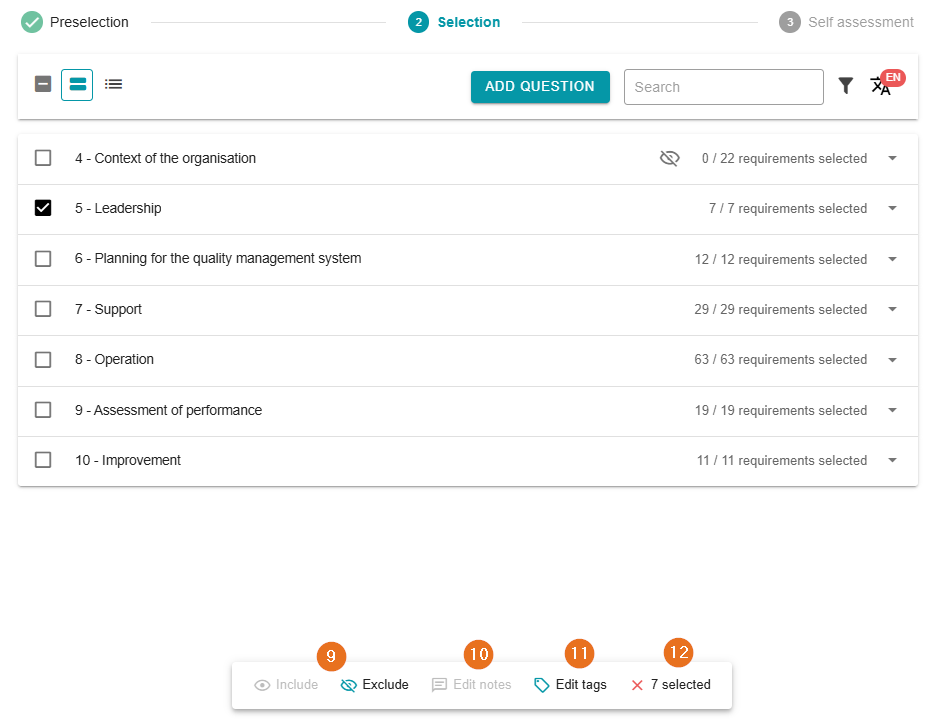
Here you can select an individual question for editing. You are already familiar with the function bar that now appears from section 5.
9 - Include or exclude
If individual questions or categories have been selected as in steps 5 and 8, they can be included or excluded from the audit using the button. The symbols described in section 6 will change accordingly.
10 - Add notes
Notes can only be added in individual processing. These are only visible to the auditors. For example, information on previous audits or anomalies can be stored here. Unlike tags, notes cannot be filtered.
If a note exists, a corresponding symbol is displayed.
11 - Edit tags
Tags are filterable information that can be added to one or more questions. They differ from labels in that tags are only valid in one audit and, unlike labels, must be entered again for a new audit:
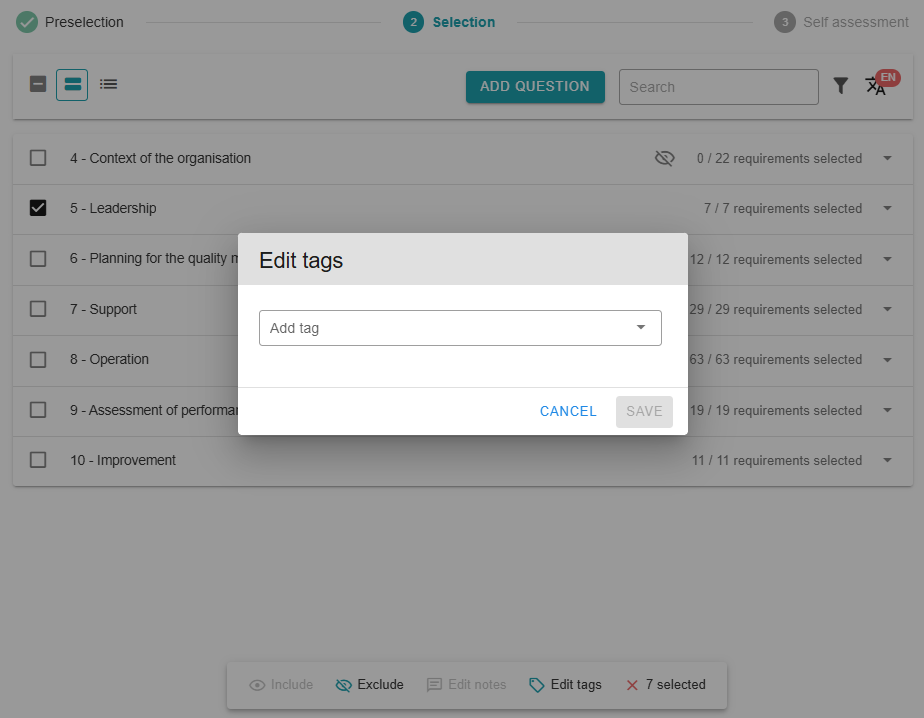
Tags can be removed or edited once they have been entered. You can use the integrated quick selection to avoid unnecessary typing and assign existing tags. This can be useful for split audits or simply for an overview in order to assign individual questions to individual auditors.
12 - Deselect selection
Deselect the selection by clicking on the button. Alternatively, you can also click on the bulk selection.
13 - Complete preparation/ self-assessment
If you have not selected a self-assessment in the planning, you can complete the preparation by clicking on the purple transition button, which you can see in the bottom right corner. You will then be taken to the implementation.
If a self-assessment has been selected, continue here to prepare the self-assessment.