
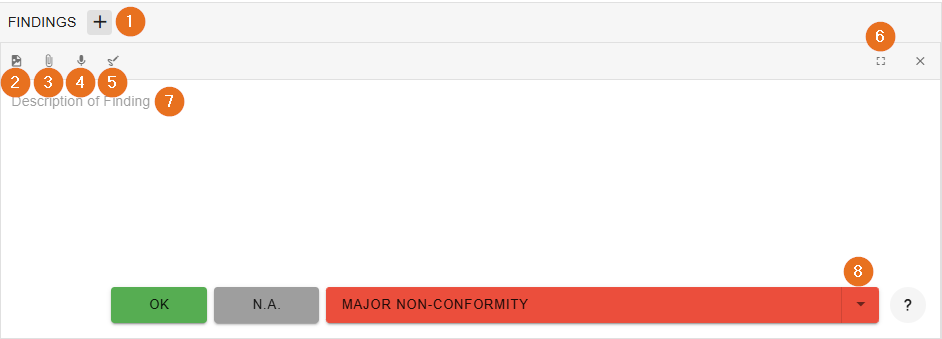
1 - Add findings in the extended editor
In addition to the small editor, the AuditCloud also offers the option of entering findings in a larger editor. This allows you to add further information to a finding. If your screen is too small and input via the small editor does not work properly, the larger editor opens automatically. Finally, the finding must be assigned to a requirement.
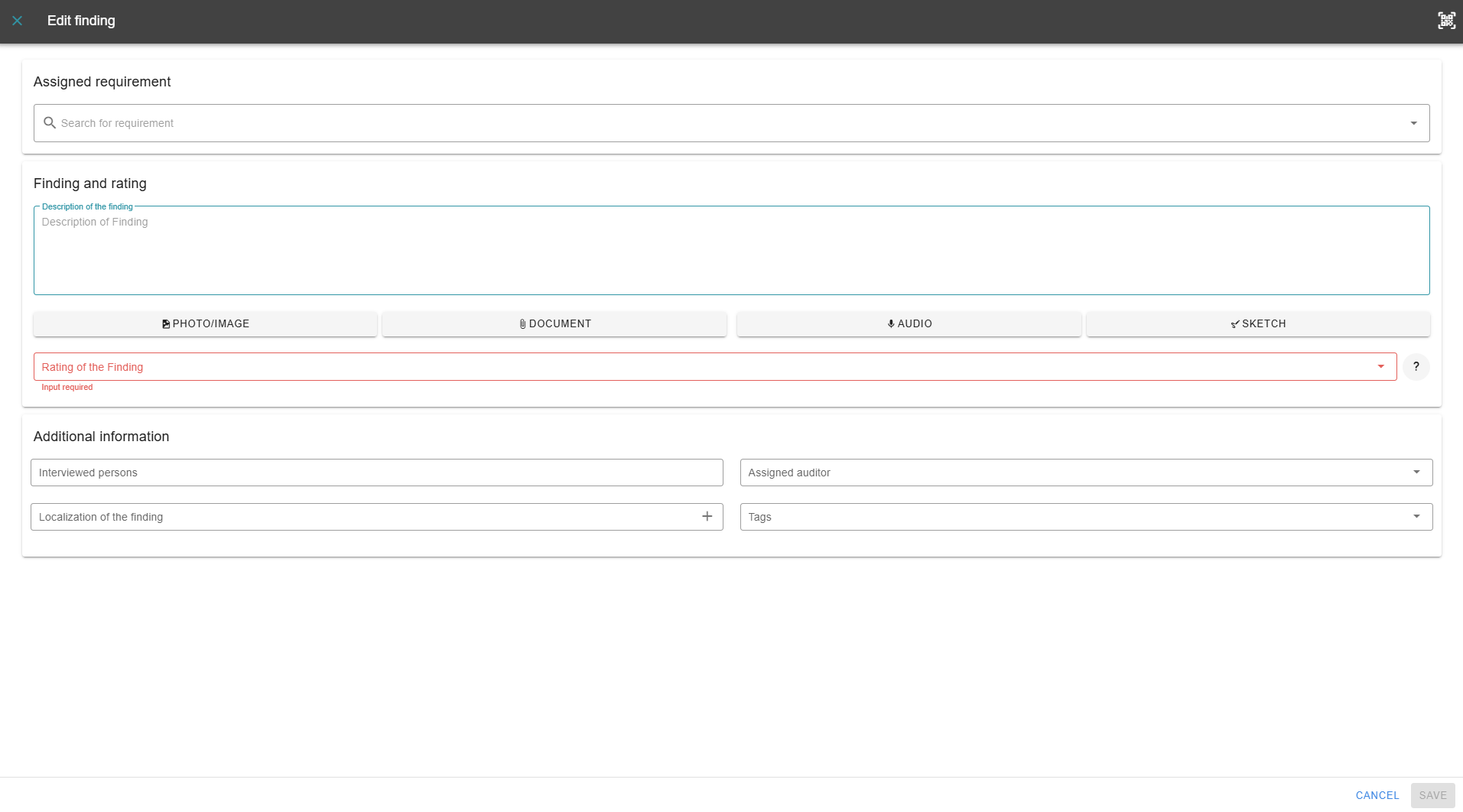
Additional information can also be entered: For example, a person with access to the AuditCloud or a manually entered name can be added in the “Persons interviewed” field. An auditor can also be assigned to each finding. The location of the finding can be saved via GPS using coordinates or simply entered manually. Tags can also be added to the corresponding findings.
2 - Attach photos
If you are using a mobile device, your camera will open directly here. Otherwise, you can select the photo from your computer. Photos can also be edited. Find out more under Edit photos.
3 - Attach files
You can also easily add files. This is particularly helpful in connection with required proofs
4 - Add audio recordings
In addition to images and text, audio recordings can also be added in the AuditCloud. This is particularly useful when auditing with mobile devices.
5 - Create a sketch
The sketch function allows you to quickly sketch a situation by hand (ideal for use on mobile devices). The sketch is then saved as a photo.
6 - Add findings in the advanced editor
As with 1, you can also edit the findings in an advanced editor. In this case, however, the findings no longer need to be manually assigned to a request.
7 - Entering a statement text
You can make a note of your statement by clicking in the text field. You can edit it later.
8 - Evaluate findings
Click on one of the buttons to save the description entered under 7. In addition, each button is given a score, which is decisive for the evaluation of your audit in the background.
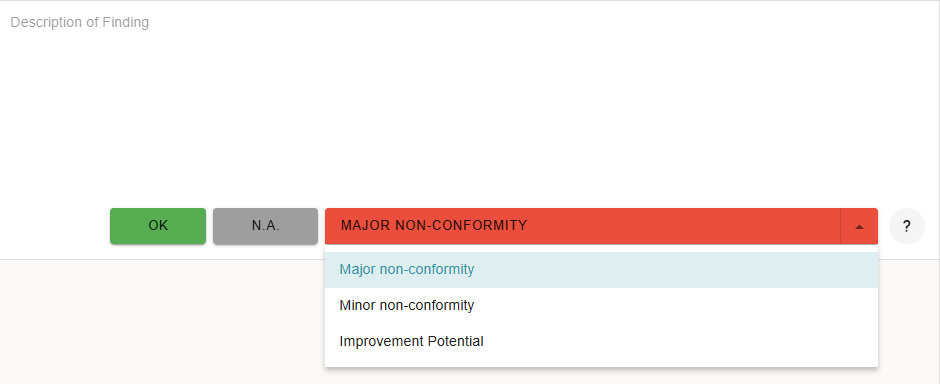
The large red button also has a selection function for other deviation types.
Standard texts can be defined for each finding type in the AuditCloud.
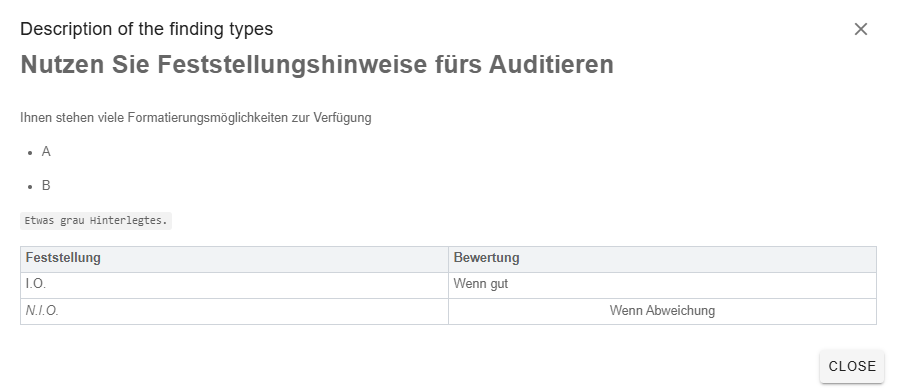
On request, the descriptions of the different finding types can also be customized for you. These can be viewed via the question mark next to the large red button:
9 - Assigning Free Comments
Free comments can be assigned to the appropriate question or requirement using the search function.
