
You can access the photo editor by clicking on an image of a finding. To do this, the corresponding finding must already have a rating.
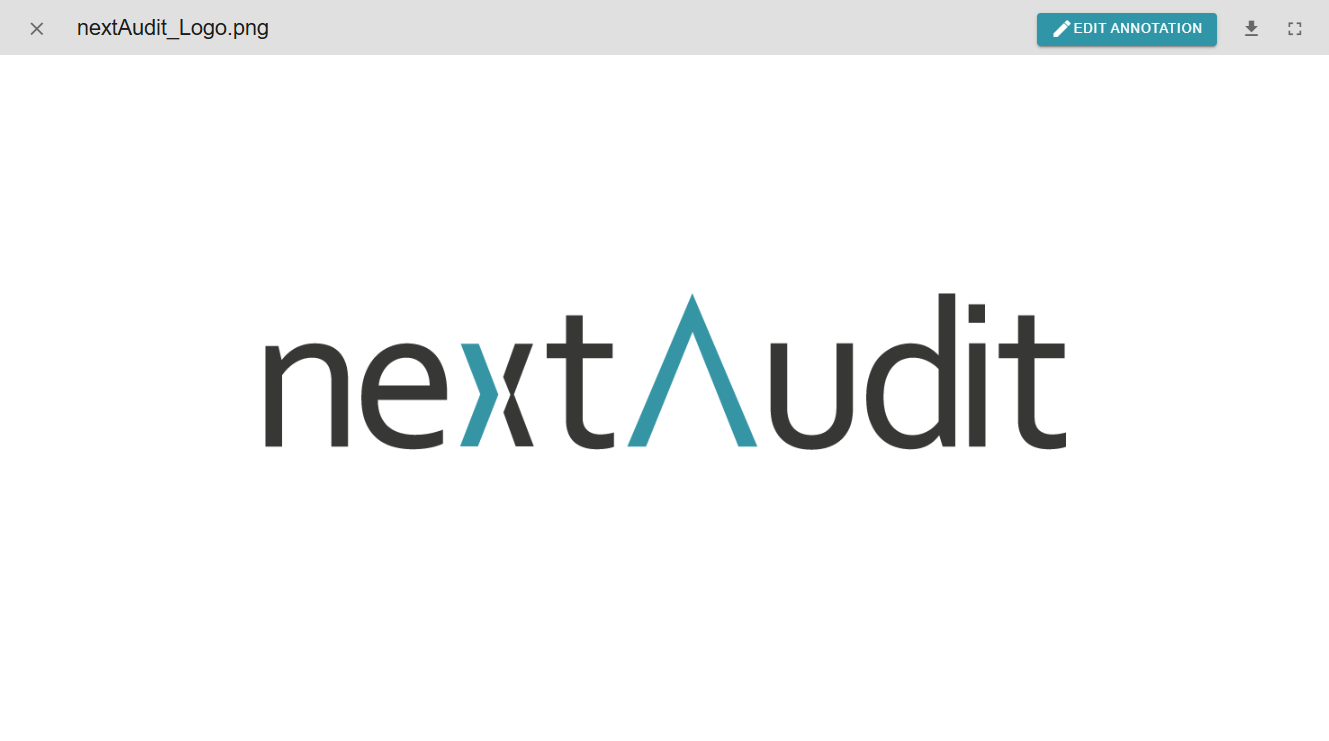
At the top right is the “Edit annotation” button, which you can use to jump to edit mode. Next to it are the options for downloading the image and full screen mode.
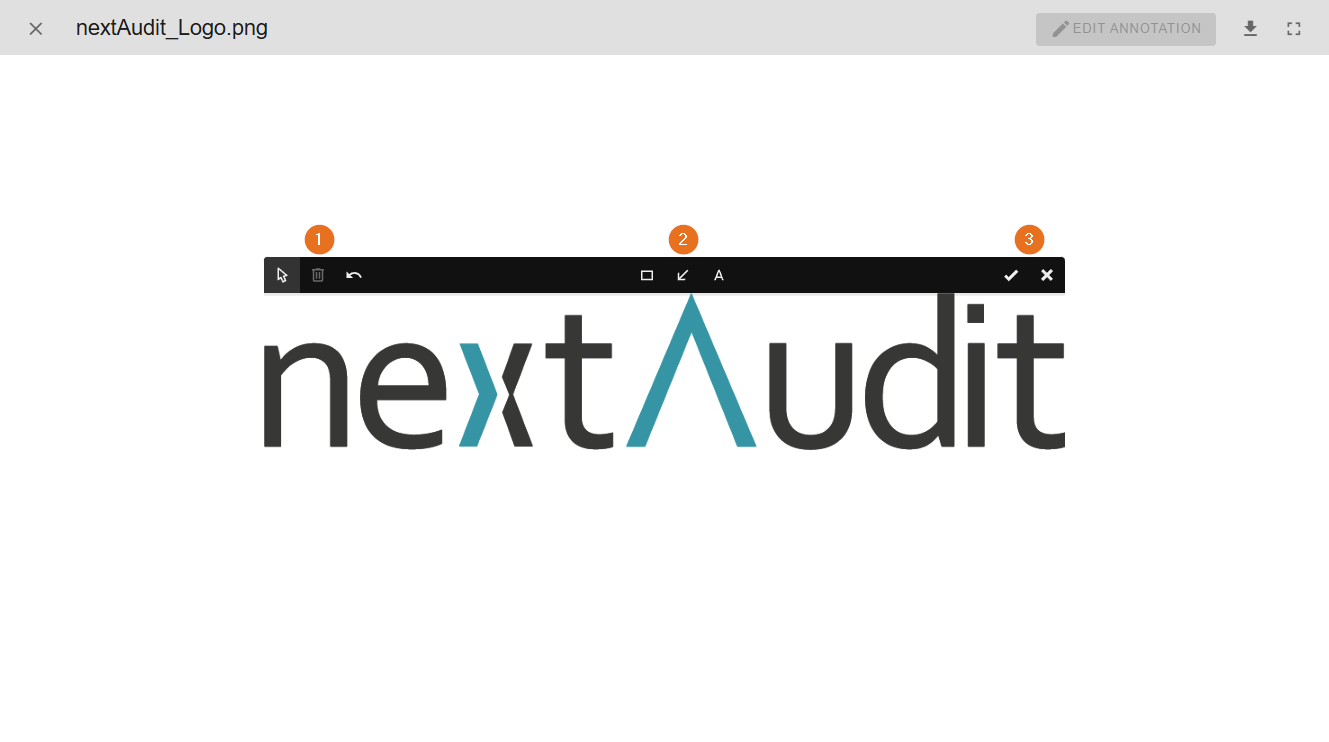
Image editing is only available for stationary devices. It is not yet available for use on mobile devices.
1 - Move or delete existing markers
If you are unhappy with one of your markers, select the mouse pointer to edit the marker again or delete the selected marker using the garbage can. You can undo your last changes using the arrow.
2 - Add marker or text
Here you can choose between a rectangle, an arrow and a text field. As soon as you have selected one of these options, you can insert the marker by dragging the mouse on the screen. At the same time, a menu appears at the bottom of the screen in which you can change the color, shape and design of the marker.
3 - Save or cancel editing
To save your markings or cancel editing, use the tick or the cross.