
Finish the audit execution
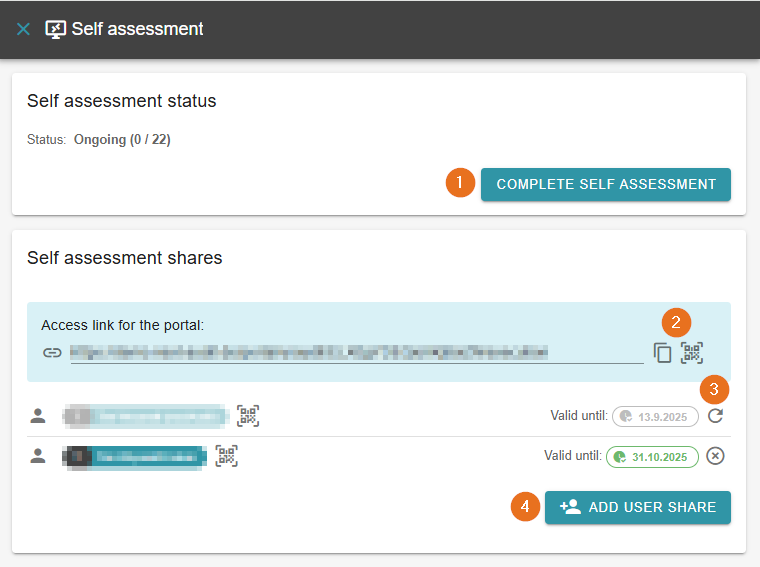
1 - Complete the self-assessment
To complete the audit execution, the self-assessment must be completed.
If you want to complete the self-assessment early, you can do so by clicking the corresponding button. It is no longer possible for external parties to access and complete the self-assessment.
2 - Copy link and QR code
At this point, it is possible to copy the link to the self-assessment portal or to open it directly using the QR code next to it. Users with approval for the self-assessment will automatically receive the link by email.
3 - Adjust existing user permissions
If you have already granted users access to the self-assessment, it is possible to revoke the corresponding permissions here. By clicking on the X, users are excluded from the self-assessment; by clicking on the arrow, the approval can be granted again.
4 - Add user share
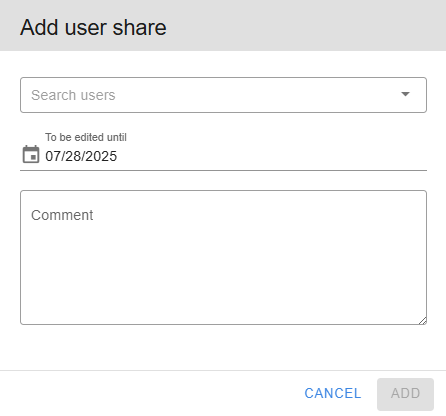
If you have selected “Start self-assessment”, a window opens in which you can approve users for processing. Here you can add existing users with a login or external users. A link for your self-assessment is also created. The user will be informed about the self-assessment by email.
The AuditCloud portal with the self-assessment can now be accessed via a direct link in the email or the access link/QR code in the AuditCloud:
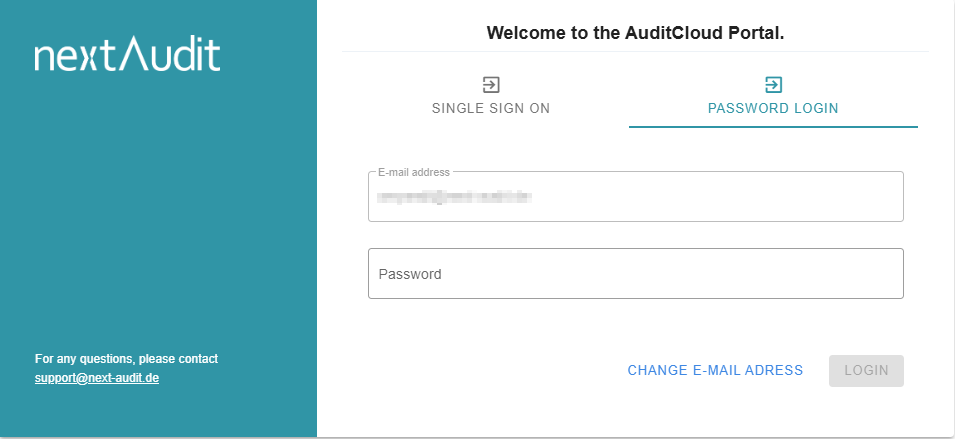
Further information on the login process can be found here: The self-assessment .
Carry out the self-assessment
Once you have completed the login process, it is now possible to complete the self-assessment. Many of the given functionalities are similar to those in the chapter add findings .
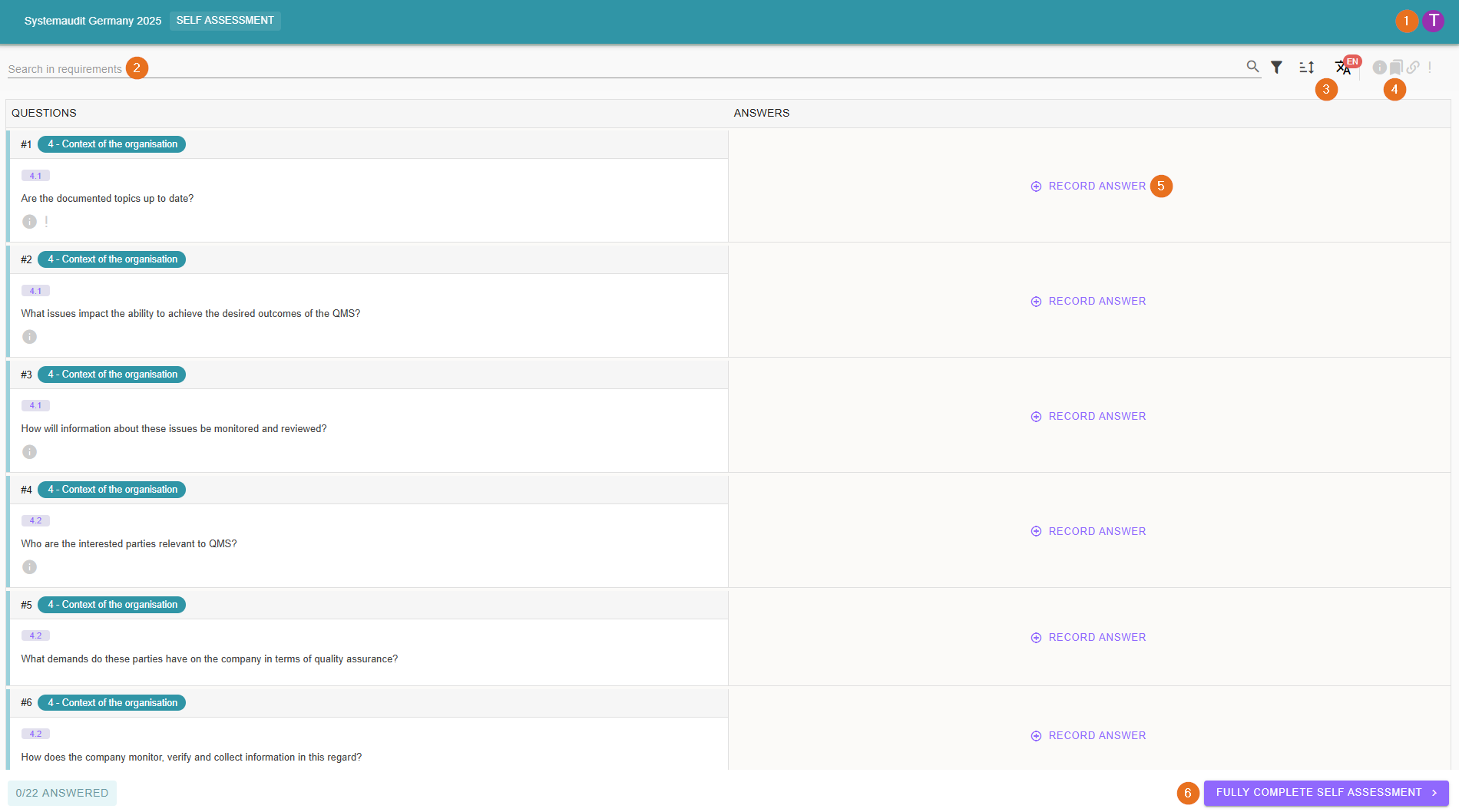
1 - Change language
For multilingual question lists (German and English), you can change the language for your user using the cogwheel.
2 - Search requirements
As you already know from the audit execution, all questions can be searched here.
3 - Filtering and sorting
During the self-assessment, you can also make adjustments to the sorting or filtering.
4 - Bulk display of additional information
Here you can display or hide additional information such as tags, notes, required evidence or links for all questions at the same time.
5 - Record answer
Similar to the findings in the execution, image and sound files as well as all other file types can be attached to an answer in the self-assessment.
Don't forget to save your answer using the Save button. When you save, the answer is displayed directly in the audit.
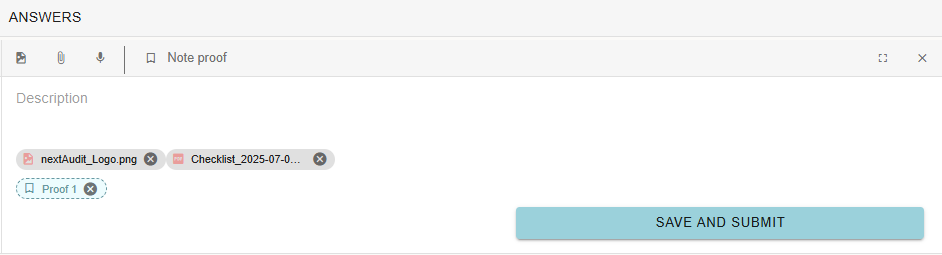
You can attach a proof to your answer with “Note proof”. You can then simply rename it by clicking on it.
6 - Complete the self-assessment
Complete the self-assessment as soon as you are finished.