
Audit execution forms the core of the entire audit process and is crucial to its validity and usefulness. This section describes how audits can be implemented efficiently, objectively and practically using our AuditCloud.
The individual functions are presented below. If a self-assessment was selected in the audit preparation, individual functions and labels will change here.
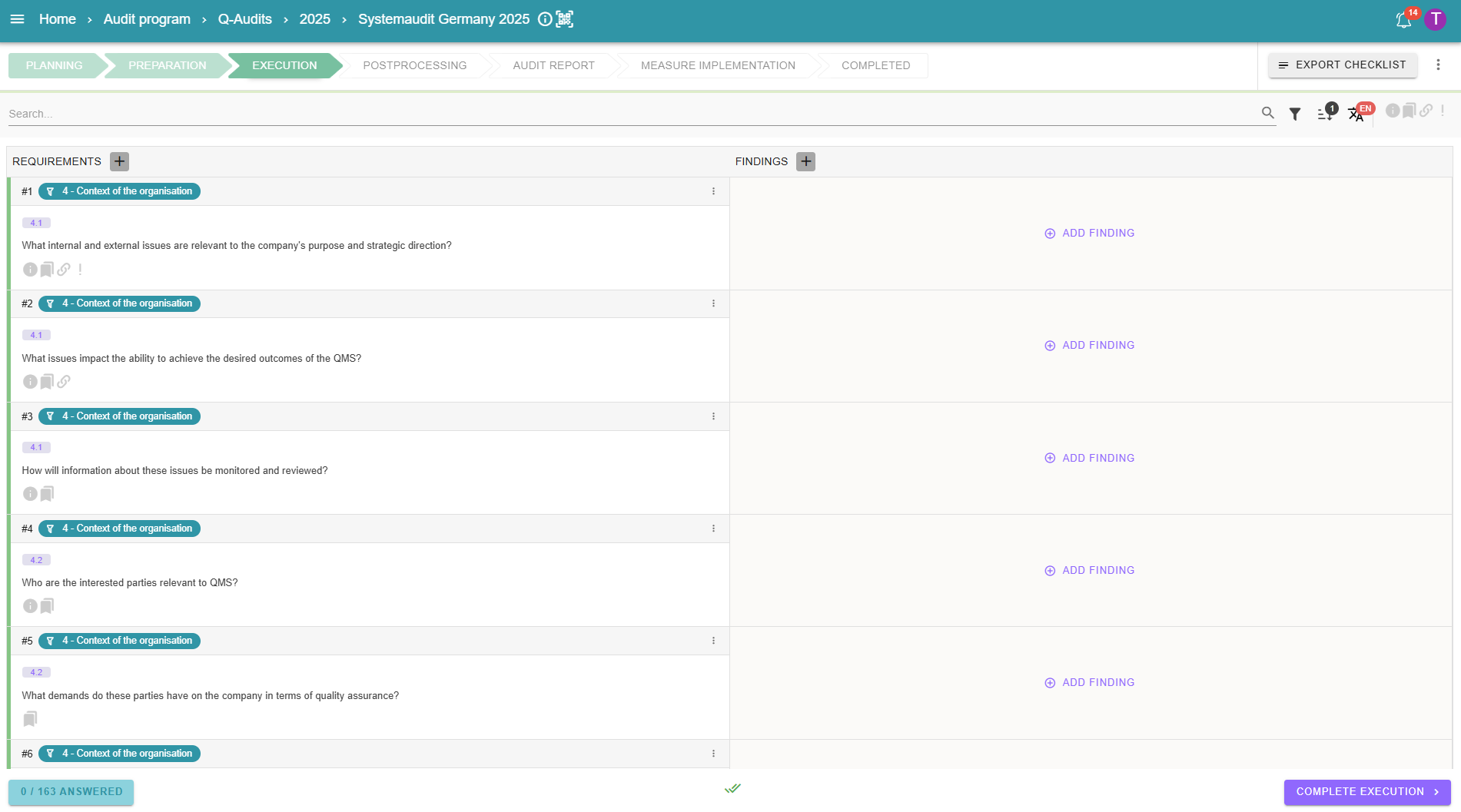
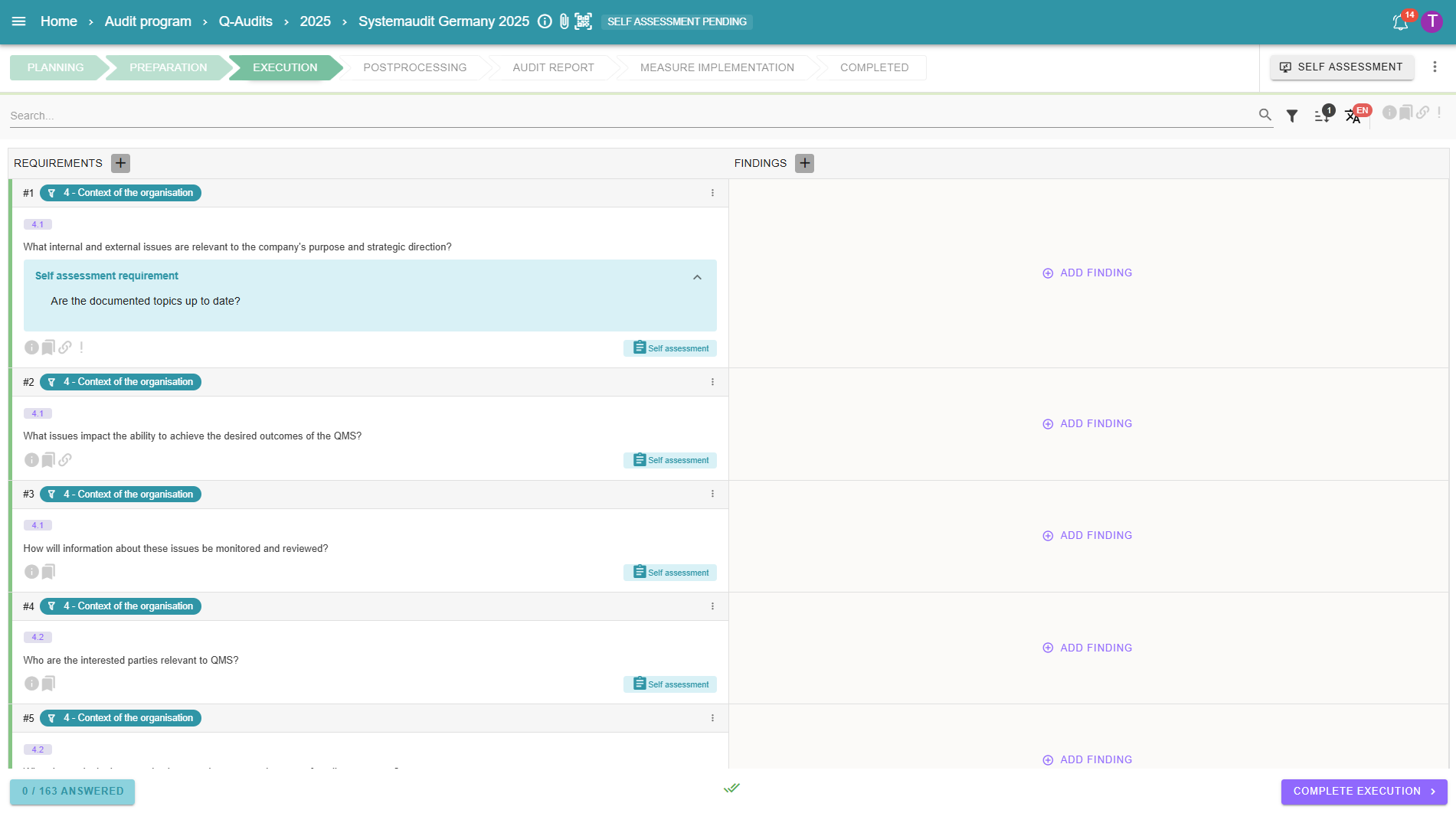
Questions/requirements
In the “Requirements” column on the left, you will find your previously selected questions and requirements.
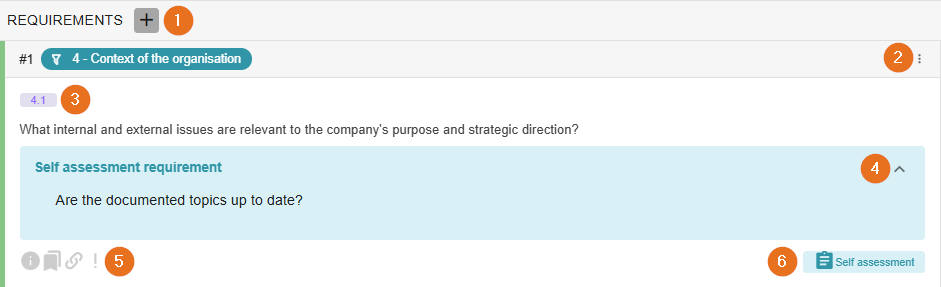
1 - Add requirements/own questions
If you realize during the audit that you need a previously excluded requirement after all, you can easily include it in the audit by clicking the “Add requirements” button. The window shown below will then open. The functionality of the window is similar to that of the preparation. You can select the view at the top left and search or filter for a requirement to the right.
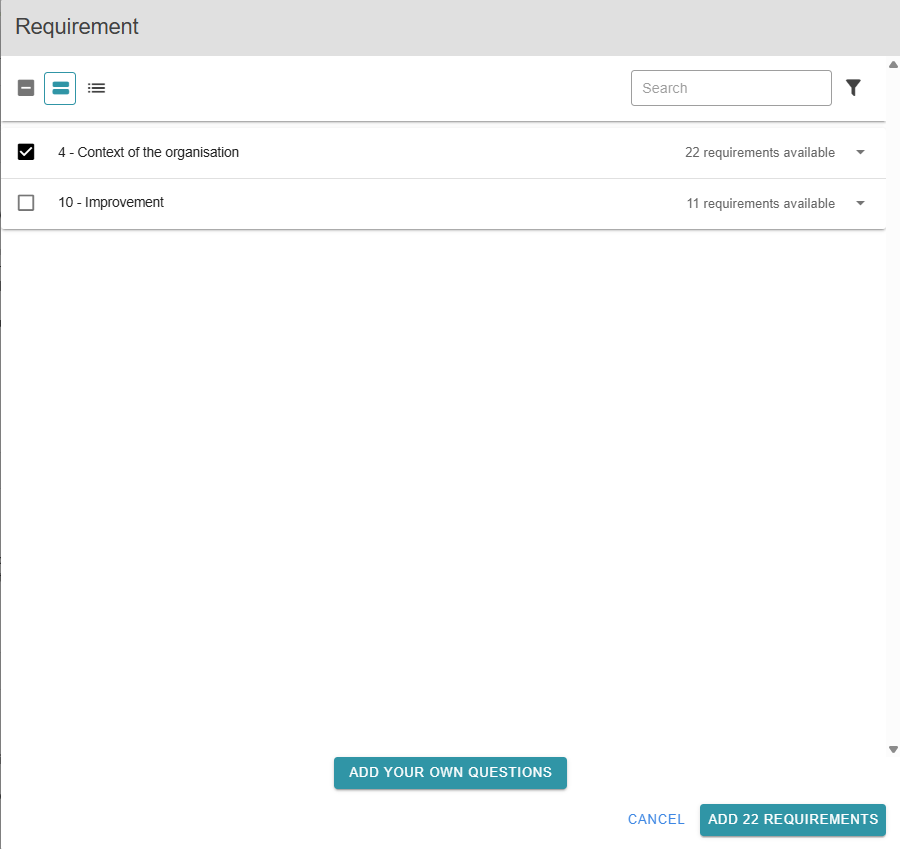
To keep it clear, only the requirements that have not yet been included are displayed. Select your requirements and confirm your selection using the green button. At this point, you can also add your own questions using the “Add your own questions” button.
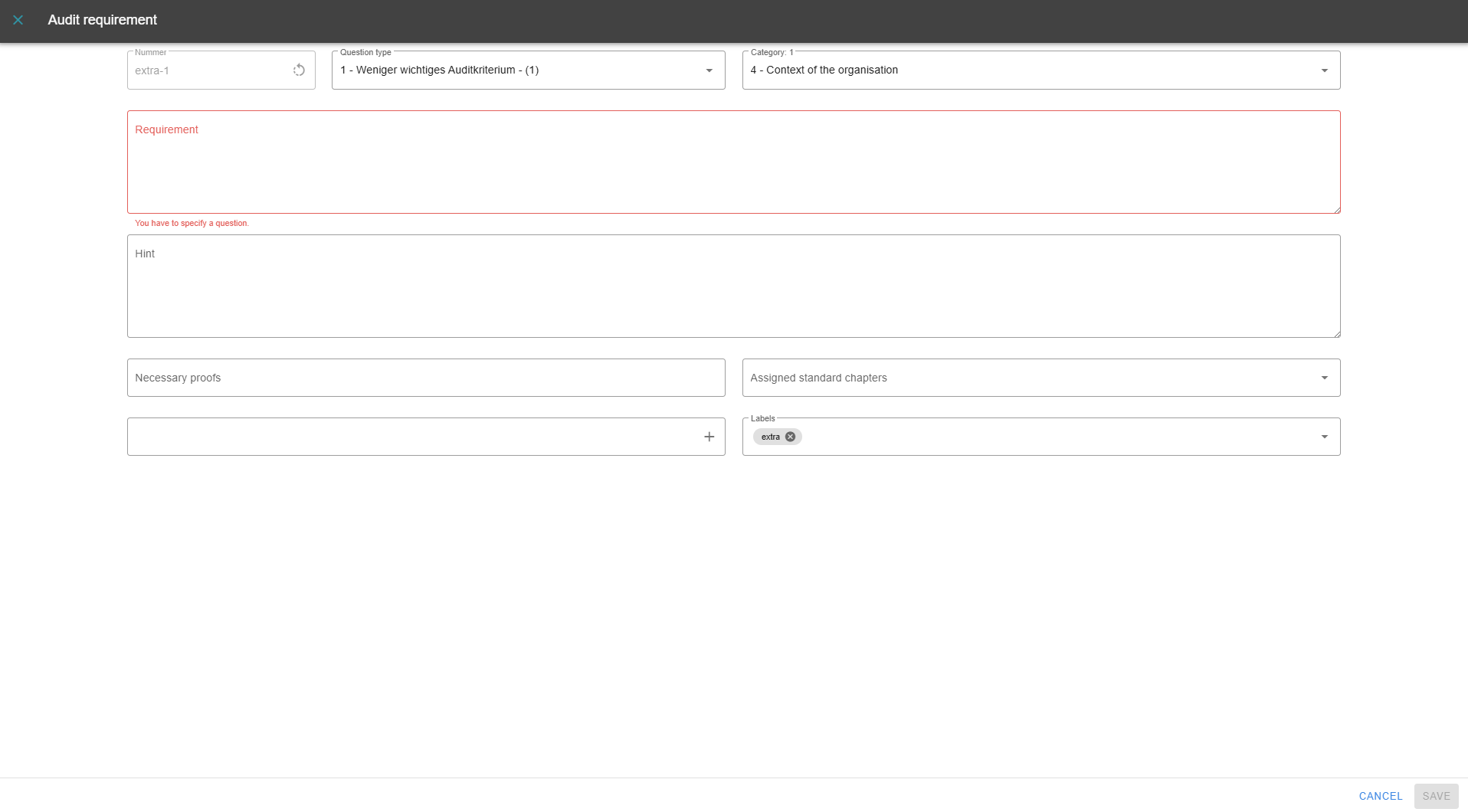
The function is similar to adding questions in the audit preparation
3 - Add new questions .
2 - Editing questions
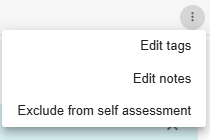
The menu button opens a menu in which you can edit the tags or the note for this question. You can also add a question to the self-assessment or exclude it again.
3 - Integrated filter function for categories, standard chapters and tags
Clicking on the category, tag or standard chapter automatically filters accordingly. Clicking on the same button again deactivates the filter.
4 - Self-assessment question
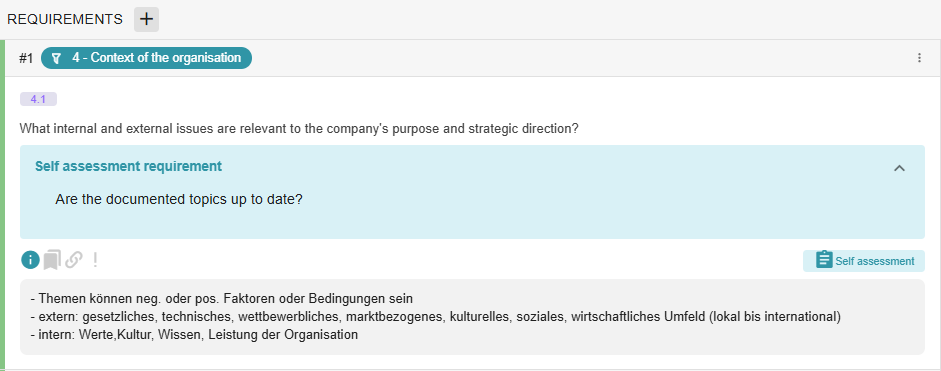
If a self-assessment question is defined in the question list template, it is highlighted in the audit question. The question can be shown or hidden by clicking on or next to the heading.
5 - Show further information
Hint:
The “Info-i” hides the note for this question. Click on the i to display it.
Labels:
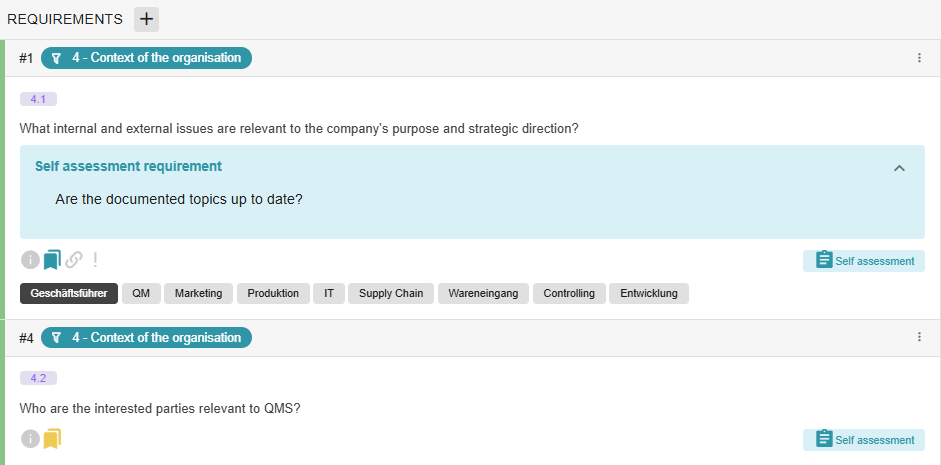
Labels can be shown or hidden by clicking on the bookmark to the right of the i. By selecting the corresponding label(s), it is possible to filter for questions that have been assigned the same label.
Links:
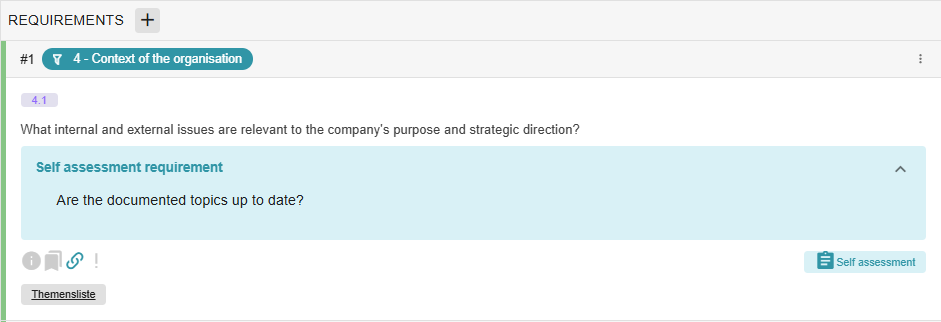
Links can either be directly visible or stored behind a keyword (as in the example here) in the AuditCloud. When clicked, the link is automatically opened in a new tab in the browser.
Necessary proofs:
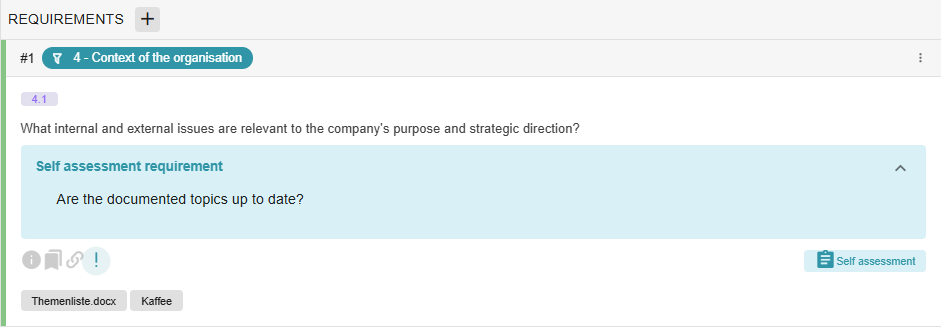
Necessary proofs can be defined for each question in the question list template. These are then used by the auditors in the audit as a reminder when evidence needs to be provided.
6 - Self-assessment marker
The marker shows directly whether this question is used in the self-assessment or not. If the marker is missing, the question is not included in the self-assessment.