
User management in the Audit Cloud
Here you will learn step by step how to create new users in the Audit Cloud, edit existing users and which roles and rights are available.
User management can be found in the dashboard. To access the user management, open the left sidebar by clicking on the three bars at the top left:
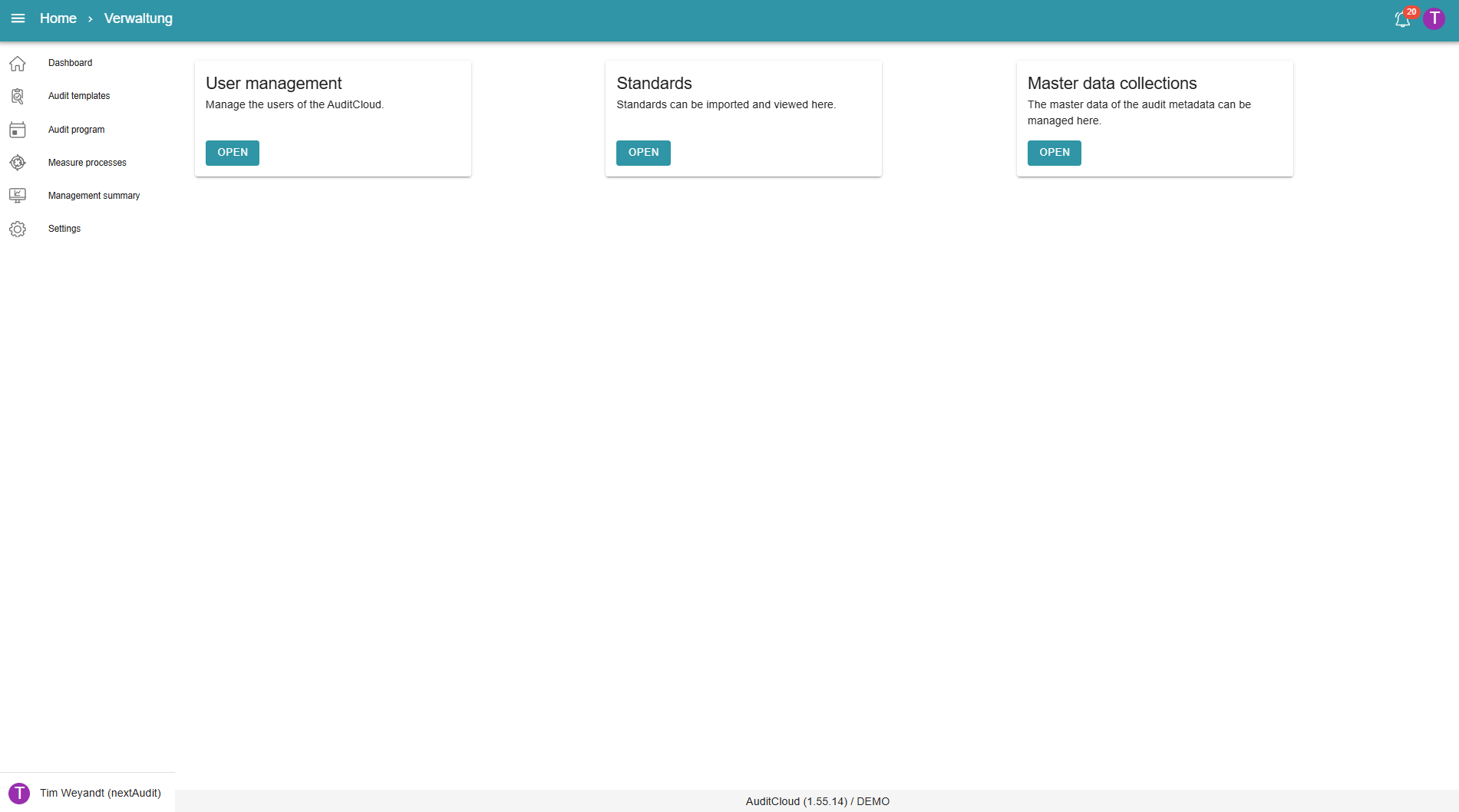
Then select the menu item “Settings” and click on “User management” to access the overview of all users registered in the system.
User overview
In the user overview, you will see all users created in the system by default. You can use the search field to filter the list by name or e-mail address in order to search for specific people.
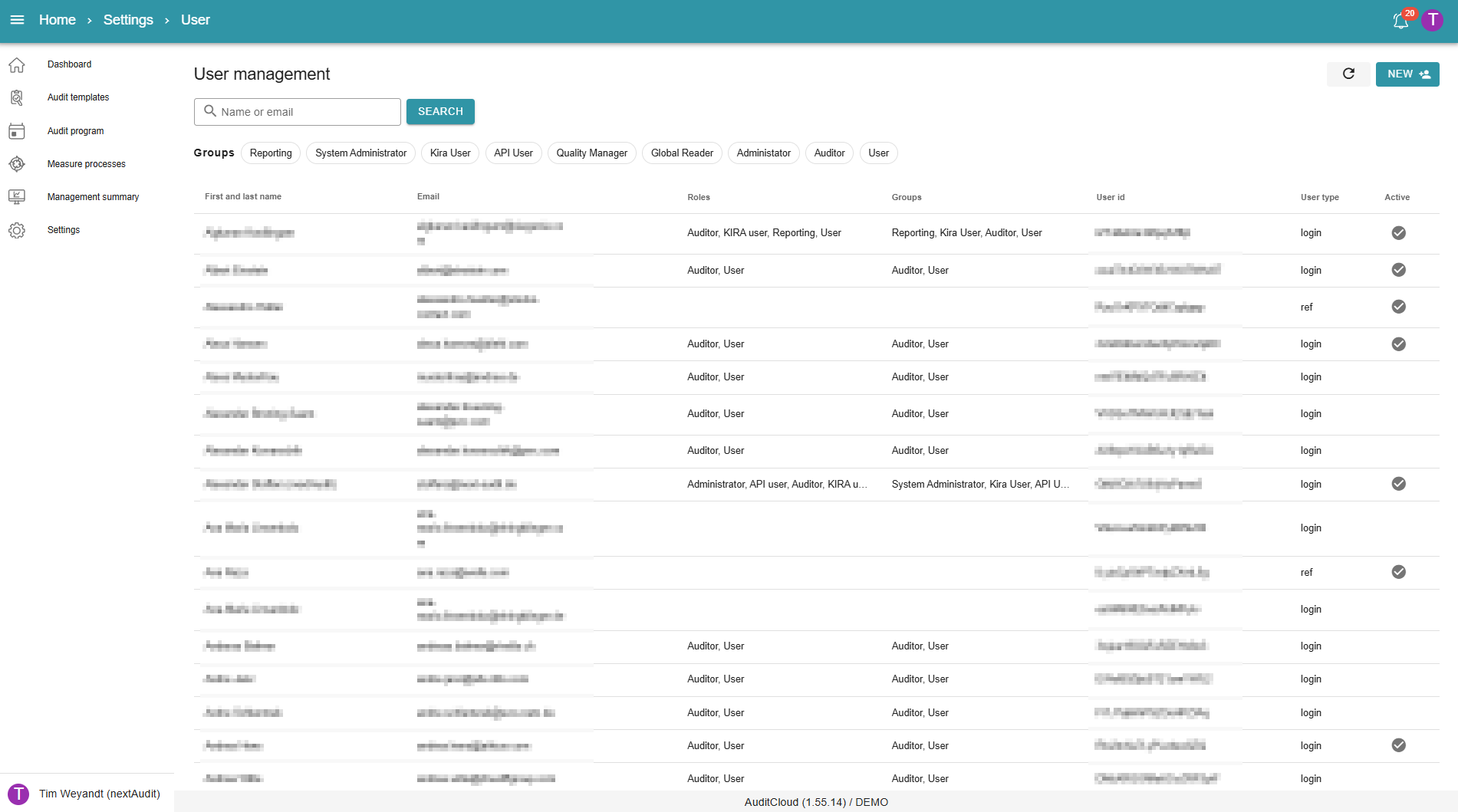
Create new login user or new person
New users are created using the “New” button in the top right corner. The system distinguishes between two types:
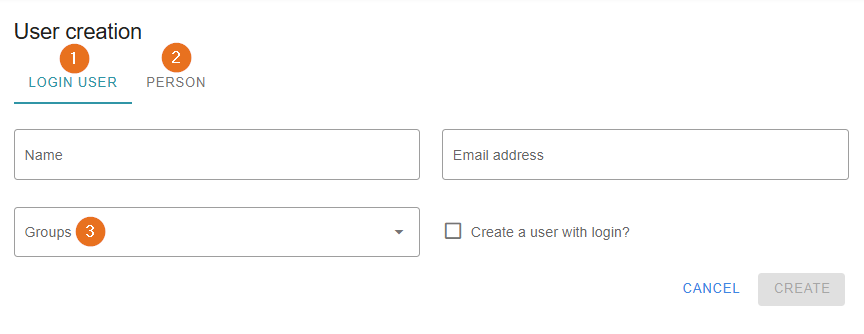
1 - Login user
Has a login for the Audit Cloud and is assigned different rights depending on their role.
To create a new user:
-
Enter the name and email address (this must be unique – addresses that are already in use cannot be reused).
-
Select the appropriate groups/role combinations via the “Groups” tile.
-
Check the box next to “Create a user with login.”
-
Click on “Create.”
2 - Person
Does not have a login for the Audit Cloud, but can perform tasks such as measure processing or self-assessments in the portal after receiving the appropriate approval.
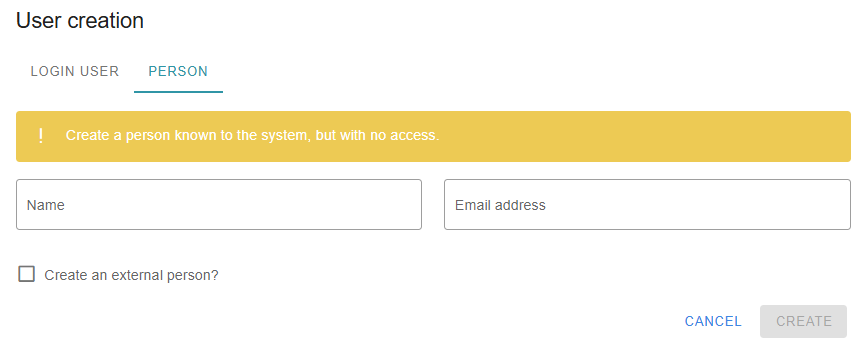
To create a new person:
-
Enter the name and email address.
-
Select the “Create an external person” checkbox.
-
Click on “Create.”
3 - Groups
You can assign different users to different groups. Clicking on the box opens a drop-down menu. You can assign the desired rights by checking or unchecking the boxes:
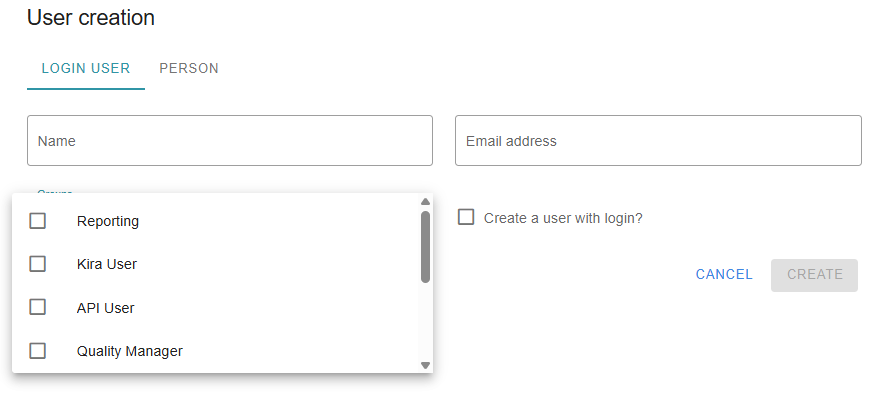
The most important groups are:
-
Quality Manager: Can edit question lists.
-
Global Reader: Has read access to all audits and measures, but no write access.
-
Administrator: Has comprehensive rights. Can reset audits, edit question lists, create new users, maintain master data, and more.
-
Auditor: Responsible for audit-related tasks.
-
User: Minimum authorization for login.
Special groups (only available upon request):
-
Reporting: Access to the management summary.
-
Kira User: Use of AI features in the Audit Cloud.
-
API User: Access to the API for communication with the Audit Cloud or for data queries.
Edit existing users
To edit existing users, click on “User” in the green bar at the top and return to the user overview.
Then select the desired user by clicking on it.
In the details window, you can change the name, change group membership (add or remove roles), and view the user type (person/user):
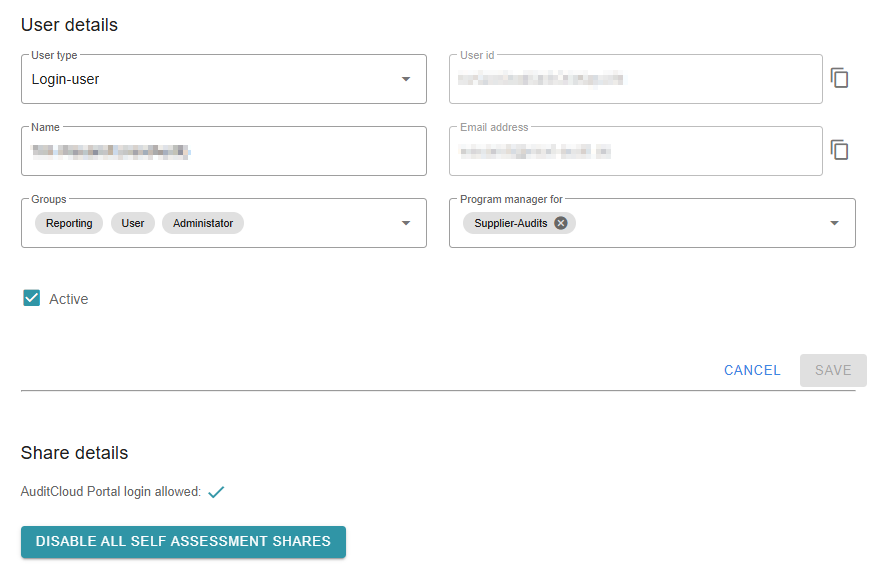
In addition, program manager rights can be assigned: This person then assumes the rights of an auditor for specific audit programs (e.g., product audits, supplier audits, etc.).
Finally, click “Save” to apply the changes.