
Edit/ delete audit
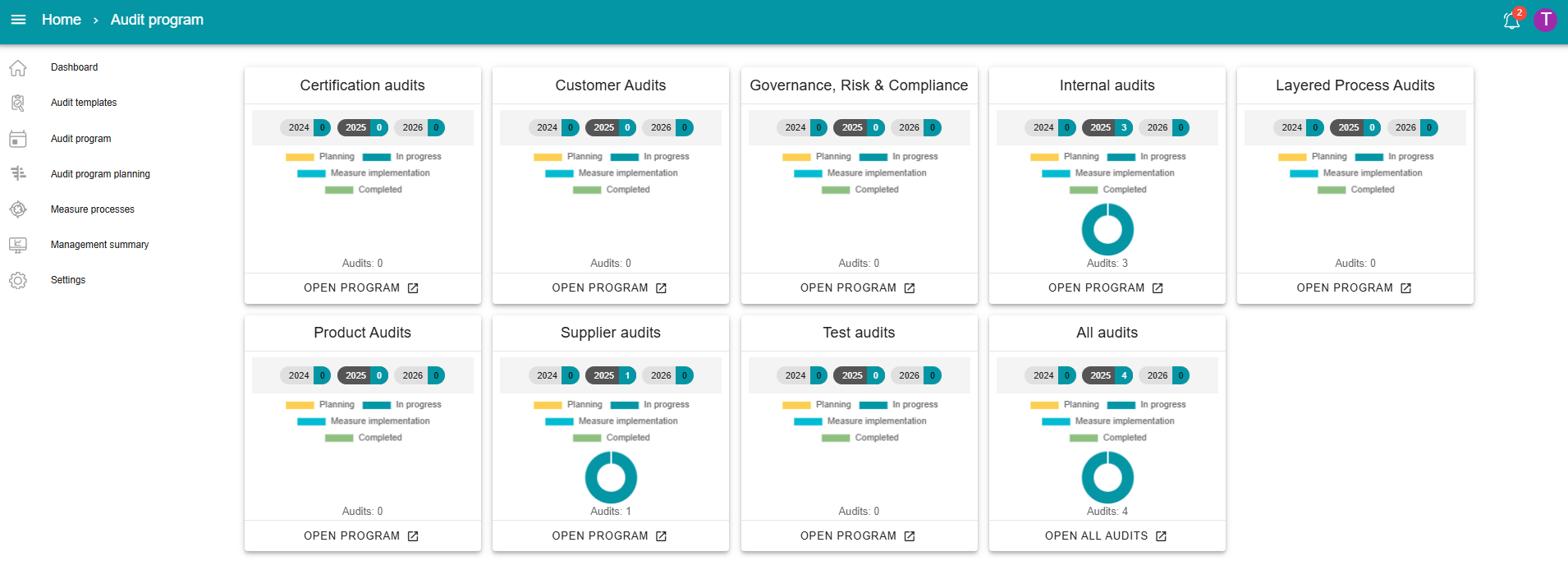
As you already know from the chapter on the audit program overview
The Dashboard | The audit program overview , you can edit and/or delete an individual audit by clicking on it. However, not all functions are available for every group
User management | 3 Groups .

After clicking on the relevant audit, it will open and display the current status.
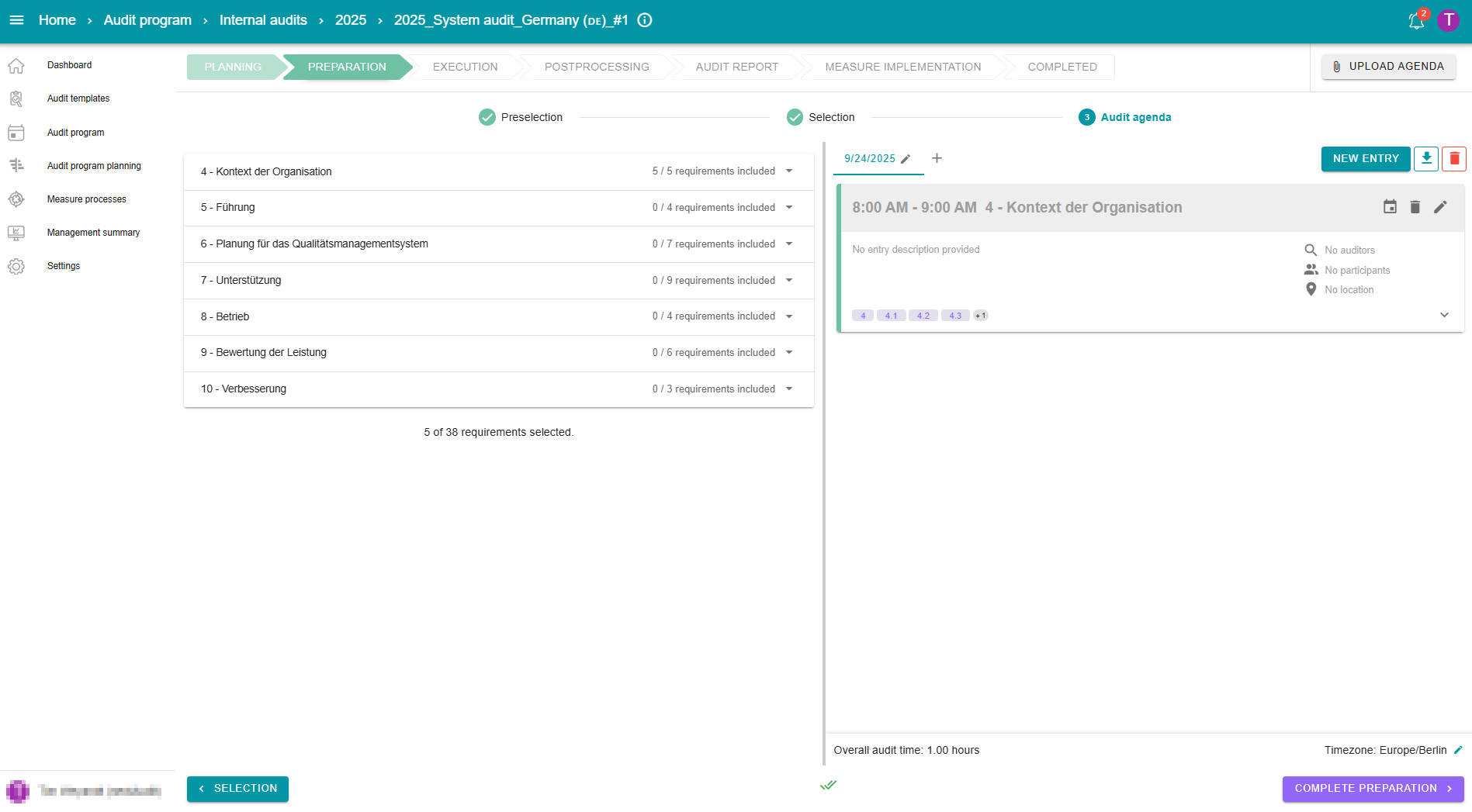
Edit
To edit an audit, click on the “i” next to the audit name.
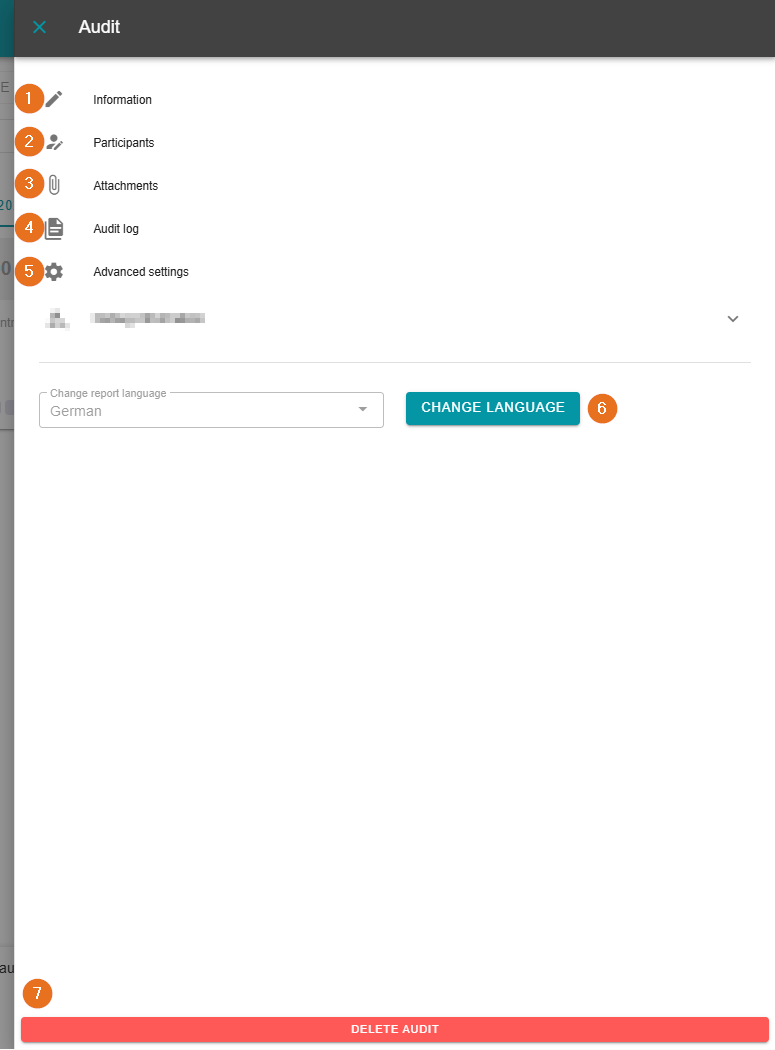
1 - Information
(Auditors only)
Under “Information”, the metadata of the audit can still be adjusted during execution. However, depending on the audit, only certain fields can be modified afterwards. Once changes are made, they must be saved again at the bottom right.
2 - Participants
In this section, the participants of an audit can be managed. The “Responsible for Action Processing” can be changed. In addition, new “Additional audit viewers” can be entered.
3 - Attachments
Under “Attachments”, existing files can be viewed. Furthermore, new documents can be added to the audit from the top right.
4 - Audit Log
The “Audit Log” provides an overview of all activities within the audit.
5 - Advanced Settings
(Admins only)
In the Advanced Settings, you can change the audit programme and reset the audit status. It is also possible to cancel audits there.
The current audit status is displayed first. Below this, you must select the new audit status. Finally, you must enter a comment explaining the change in status. It is only possible to reset an audit. To change to the next audit status, you must follow the normal procedure.
6 - Change Report Language
(Auditors only)
Lastly, the report language can be changed. It is possible to choose between German and English.
7 - Delete
(Admins only)
To delete an audit, click on the “i” next to the audit name as well and then select the red button “Delete Audit”. Afterwards, the action must be confirmed.