
Create audit
To create your audit, first open the “Dashboard” tab in the left sidebar:
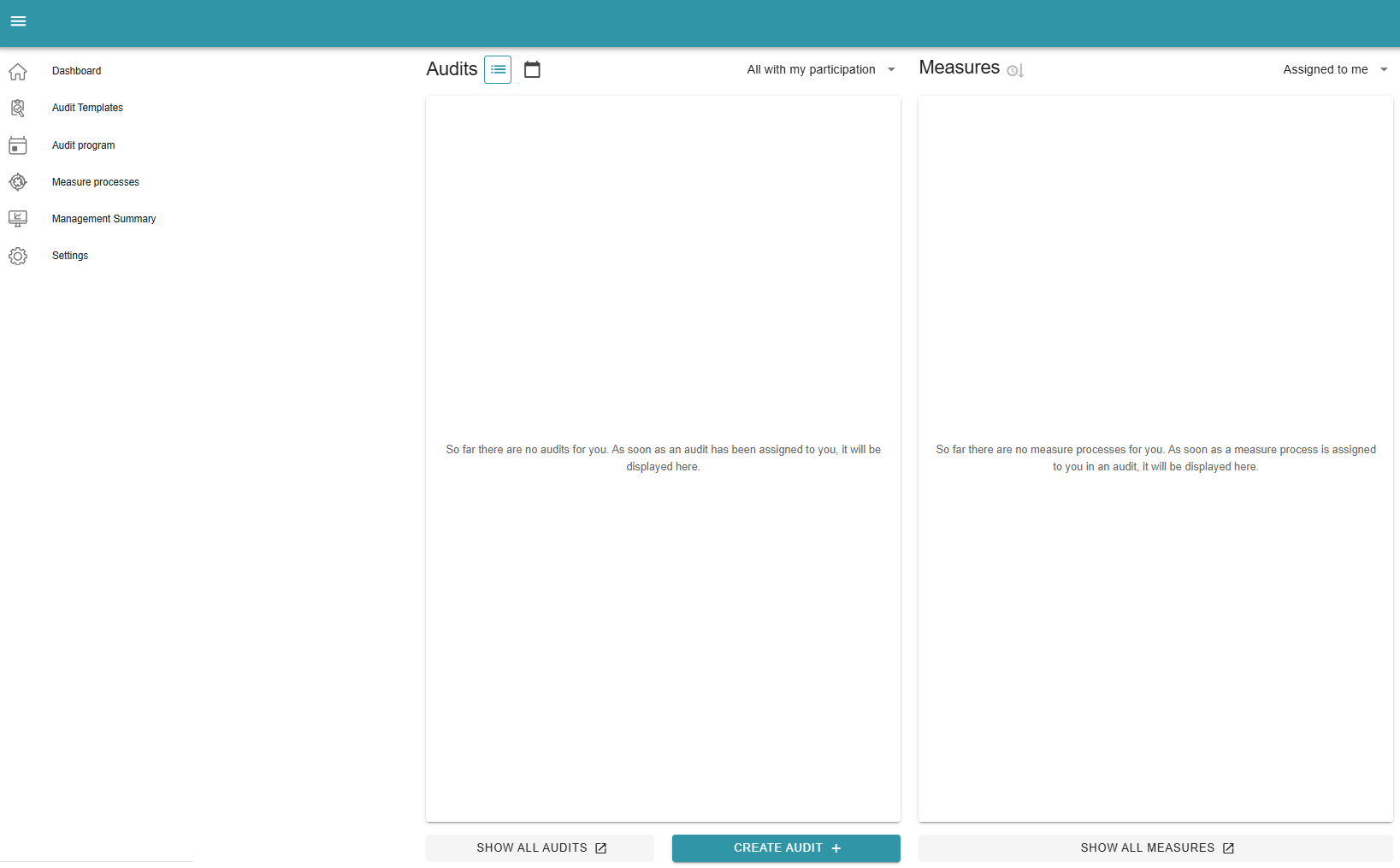
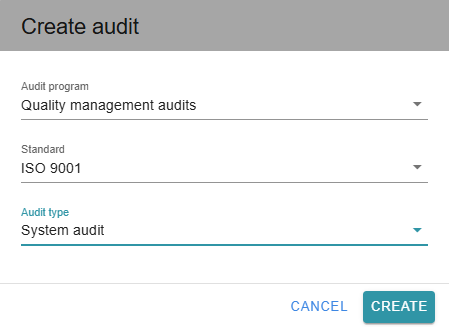
Now use the “Create audit” button to specify the audit program, the audited standard and, if required, the audit type, and confirm your selection by clicking the “Create” button:
The audit program overview
This can also be done in the audit program overview. ALL audit programs can be viewed in the audit program (also accessible via the left sidebar). All audits in the programs can be opened and edited with the appropriate authorization. If you are not a participant in the audit, its auditor or the person responsible for the measure, you can only view the metadata of the respective audit.
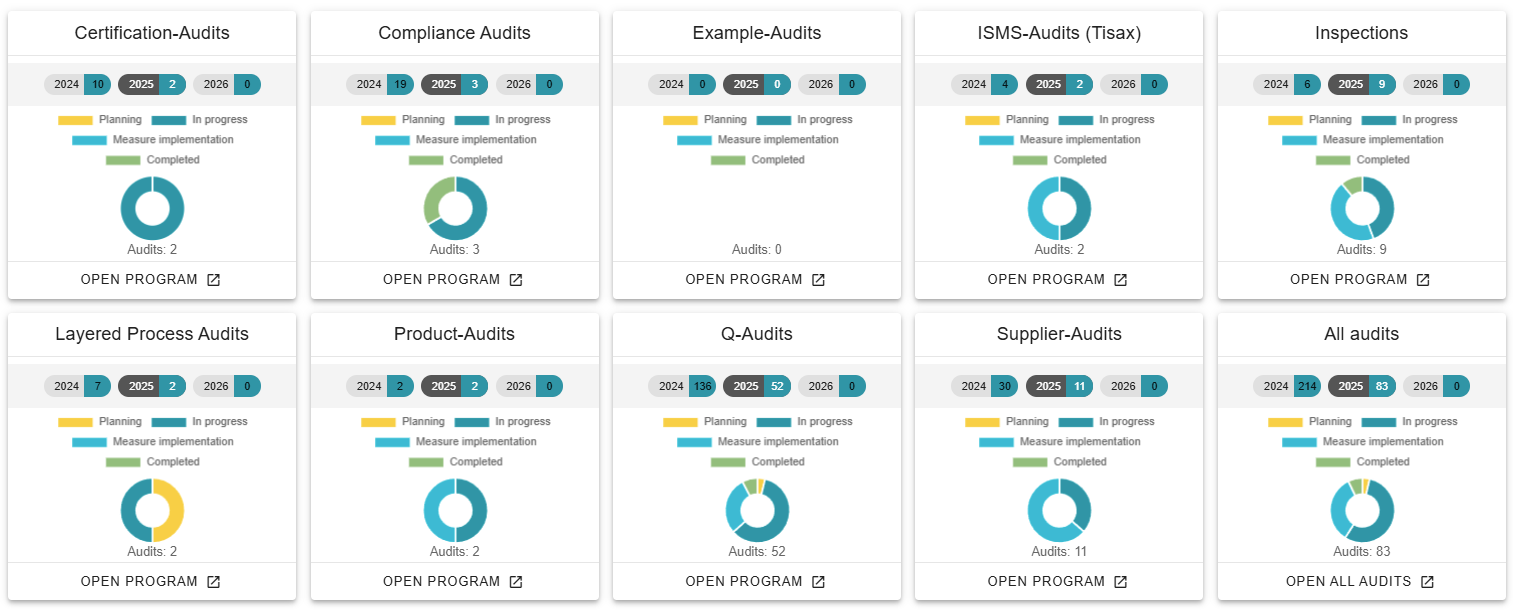
To continue an audit, simply click on “Open program” and an overview will open. You can now click on any audit in the respective line to view it. ATTENTION: If only one audit program can be viewed on your system, you will be forwarded directly to the overview page:
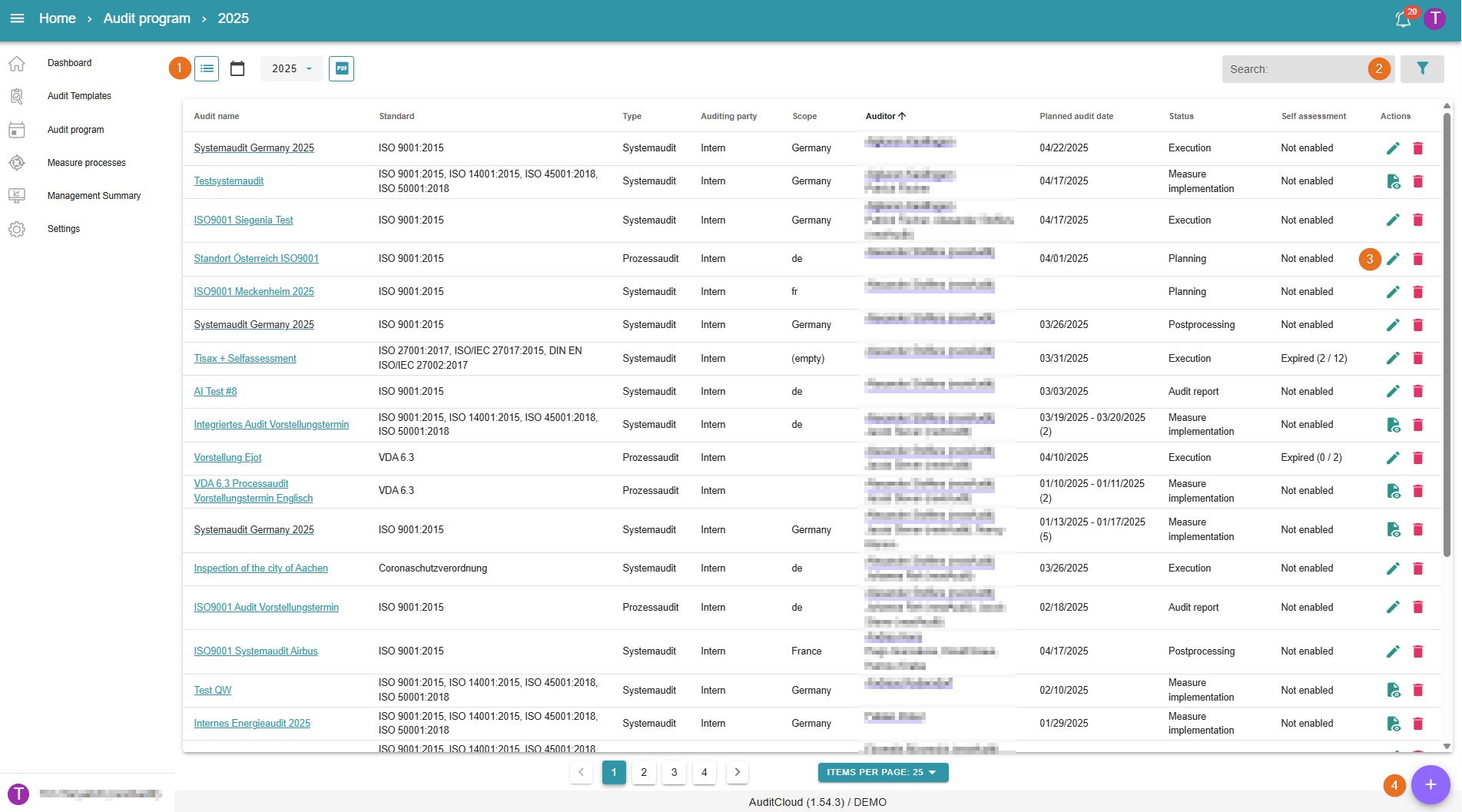
1 - Change period under review
The audits are pre-sorted for the respective period under review. You can use this selection field to display older periods.
2 - Use filters
Filters can be applied to the audits here, including, for example, the planning period, the execution date, the lead authors and many more.
3 - Edit/delete audit
Click on the green pencil to go directly to editing the metadata. If you have the required administrator rights, you can also delete audits.
4 - Create audit
Create a new audit from the audit program. You can find out more at
https://nextaudit.atlassian.net/wiki/spaces/SW/pages/245891073/The+Dashboard#Create-audit .
The audit and measures overview
If audits or measures have been created, they will be displayed to you if you are involved in them.
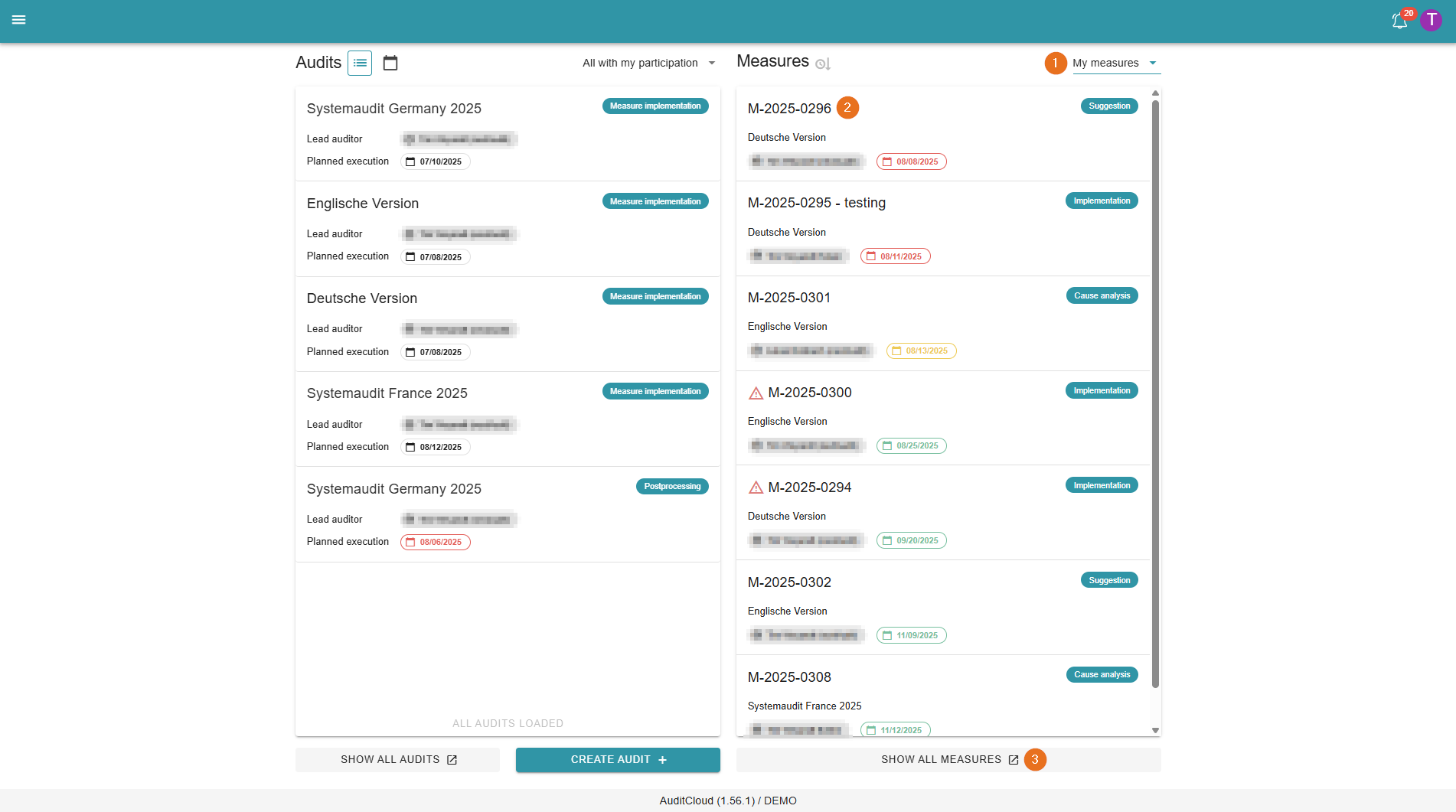
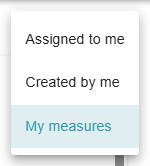
1 - Filter measures
Here, measures can be filtered based on your involvement:
2 - Measure information
In addition to the measure ID and the name of the audit, you will find information about the person responsible for the measure, the due date for processing, and the current status of the measure.
3 - List of measure processes
Clicking on the “Show all measures” button opens a new page. Depending on the filter and authorisation, all or only your own measure processes can be viewed here. From here, measures can be edited, deleted and edited in bulk.
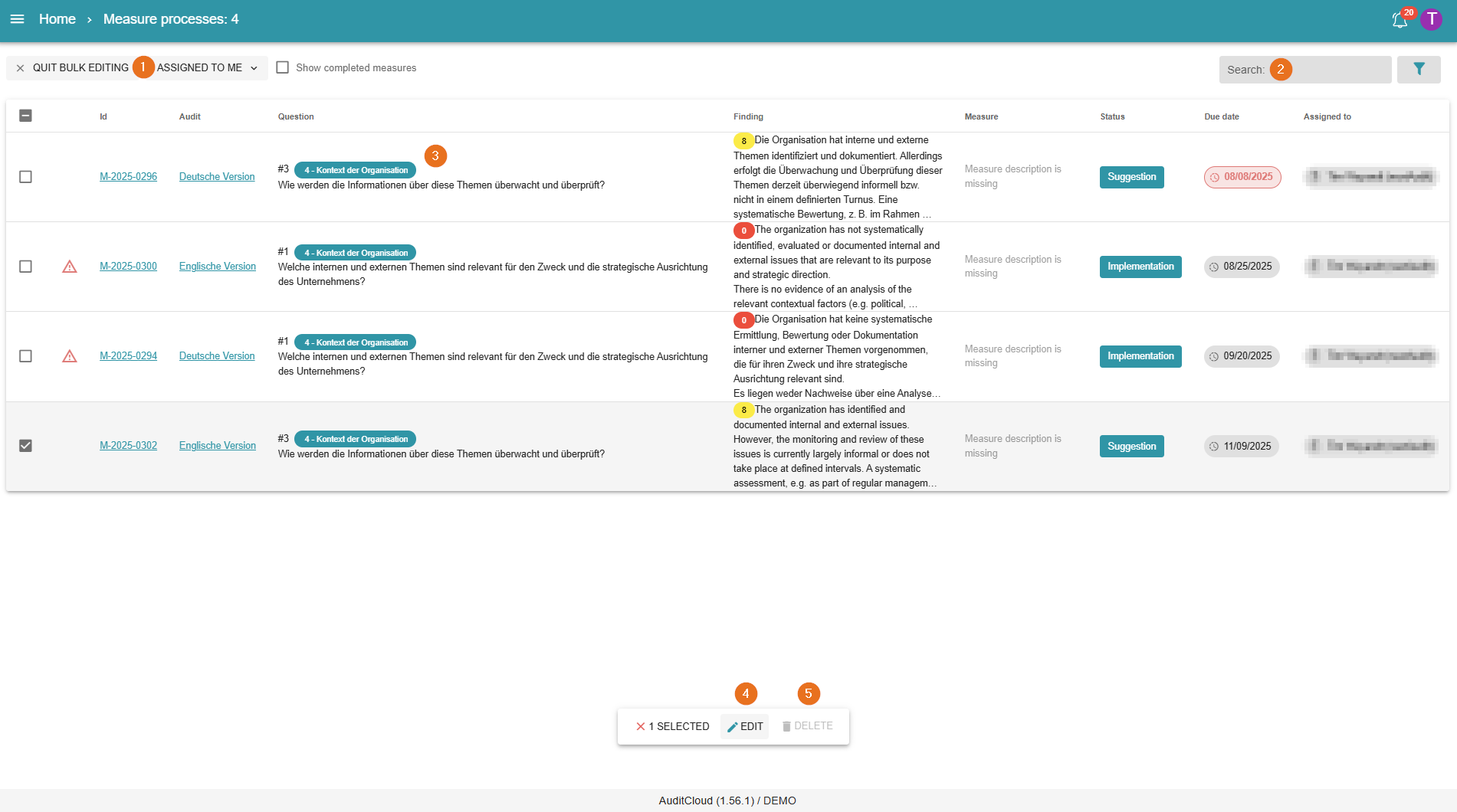
1 - Start measures after assignment/bulk editing
Select whether you want to display only your own measures or all measures. This function is only available to administrators. The selection field is not displayed for all other roles.
If you do not want to edit measures individually, you can select several measures at once using bulk editing.
2 - Filter
The filter and search function is also supported for action processes.
3 - Edit/delete individual action
Here, the respective action can be edited or deleted. When editing, the measure editor opens
https://nextaudit.atlassian.net/wiki/x/C4CmDg .
4 - Bulk editing
Various changes can be made here. These include, for example, assigning the measure to another person or changing the due date. For more information, see
https://nextaudit.atlassian.net/wiki/spaces/hc/pages/245563434/Processing+of+measures#3---Start-bulk-editing .
5 - Delete selection
The selection can be deleted in bulk here.