
Adding questions
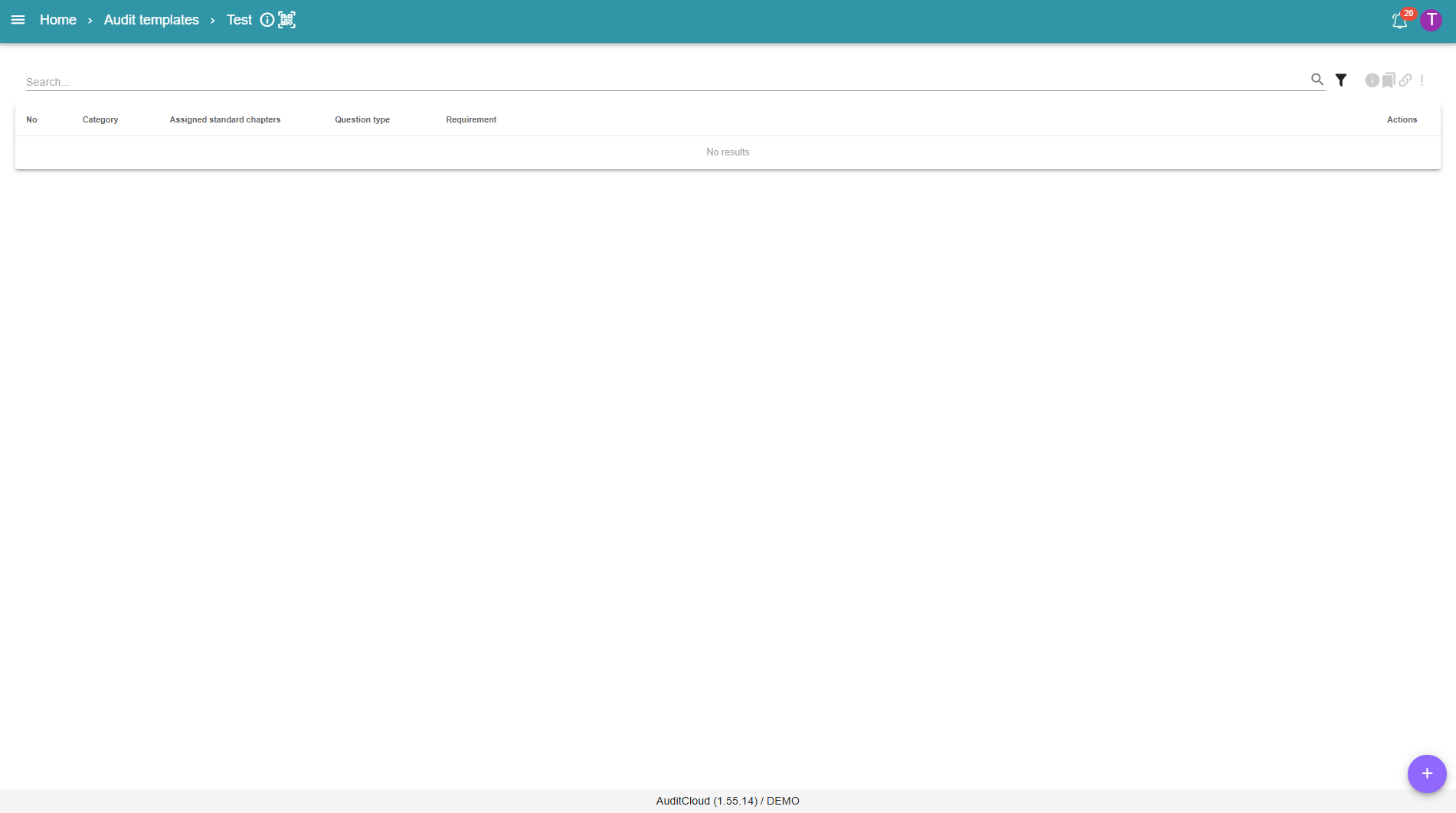
Once you have opened an existing audit template, new questions can be added using the purple plus button in the bottom right-hand corner:
The editor then looks as follows:
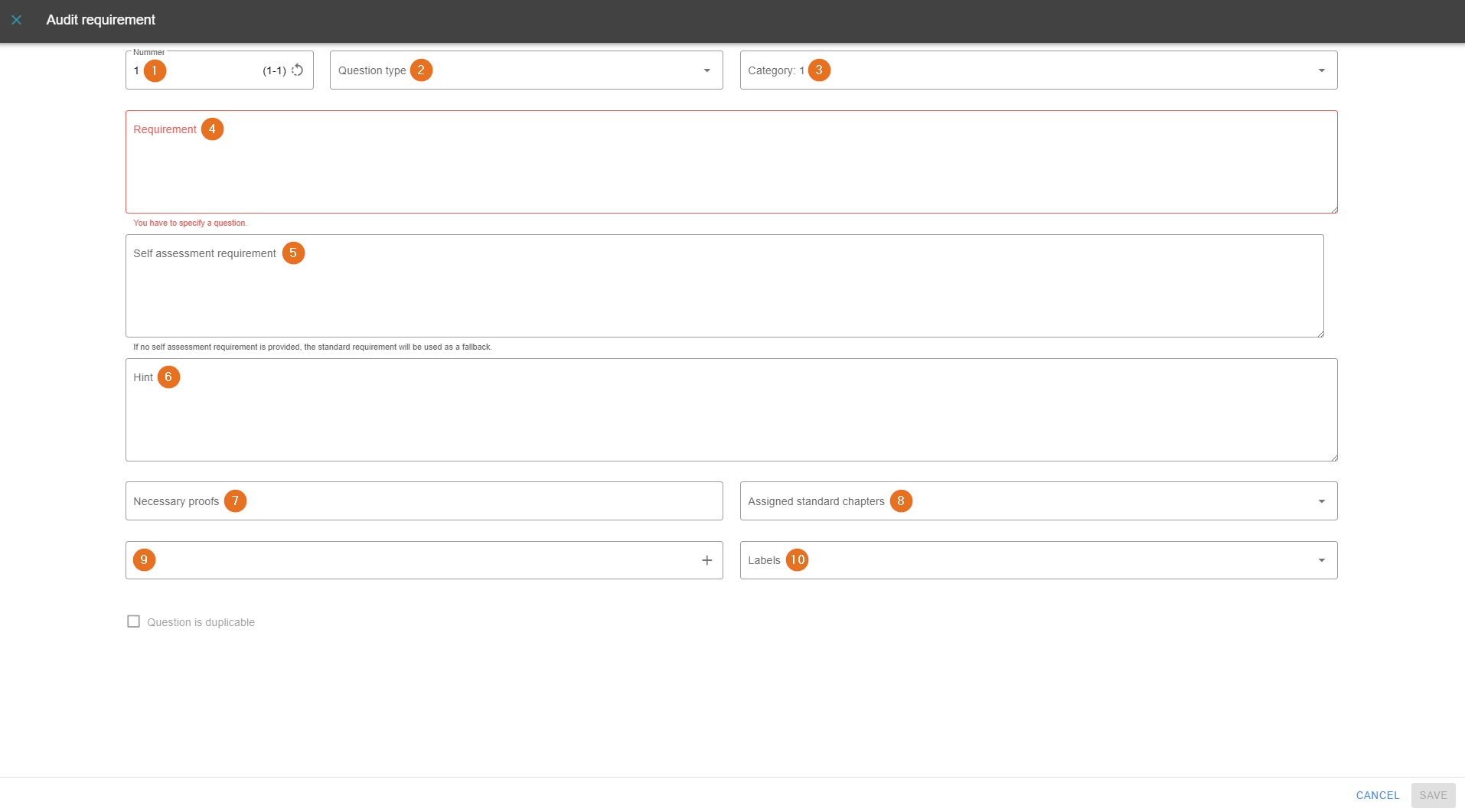
1 - Change question number
If the new question is to appear at a specific position in the question list, this can be done by specifying/changing the question number.
2 - Determine question type
The type of question is associated with a weighting. This means that some questions can have a greater impact on your audit result than others. The type can also be used to determine whether it is a knockout question or, in the VDA context, an asterisk question.
3 - Select category
Select the category to which a question should belong. As described above, the categories can be used to organize and sort questions.
4 - Add question
The actual question text is entered in this area.
5 - Add self-assessment question
If you do not want to use the actual question in the self-assessment, enter this question in this text field. The multilingualism already explained is supported.
6 - Add note
A multilingual note can be added to each question. This is done here.
7 - Add required proof
To add a required proof, enter the proof under point seven in the picture. Then press the Enter key to save it.
8 - Assign standard chapters
The standard chapters of the standard that you selected when creating the question list can be added here by clicking on them. It is also possible for a question to refer to more than one standard chapter.
9 - Enter external links
When you click in the field, a new window opens. You can easily enter your links in this window. Links must begin with http:// or https://.
10 - Determine labels
To be able to filter certain words in the audit preparation, they must be entered here. Labels that have already been used are available for selection.