
Import Template
To import a list of questions, go to the Audit templates tab in the menu bar on the left. This gives you access to all Questionaires and the option to create or import new ones.
To do this, click on the purple plus sign in the lower right corner. Select the Import a Template option. A window will open in which you will be prompted to open your Excel question list in the upper left corner.
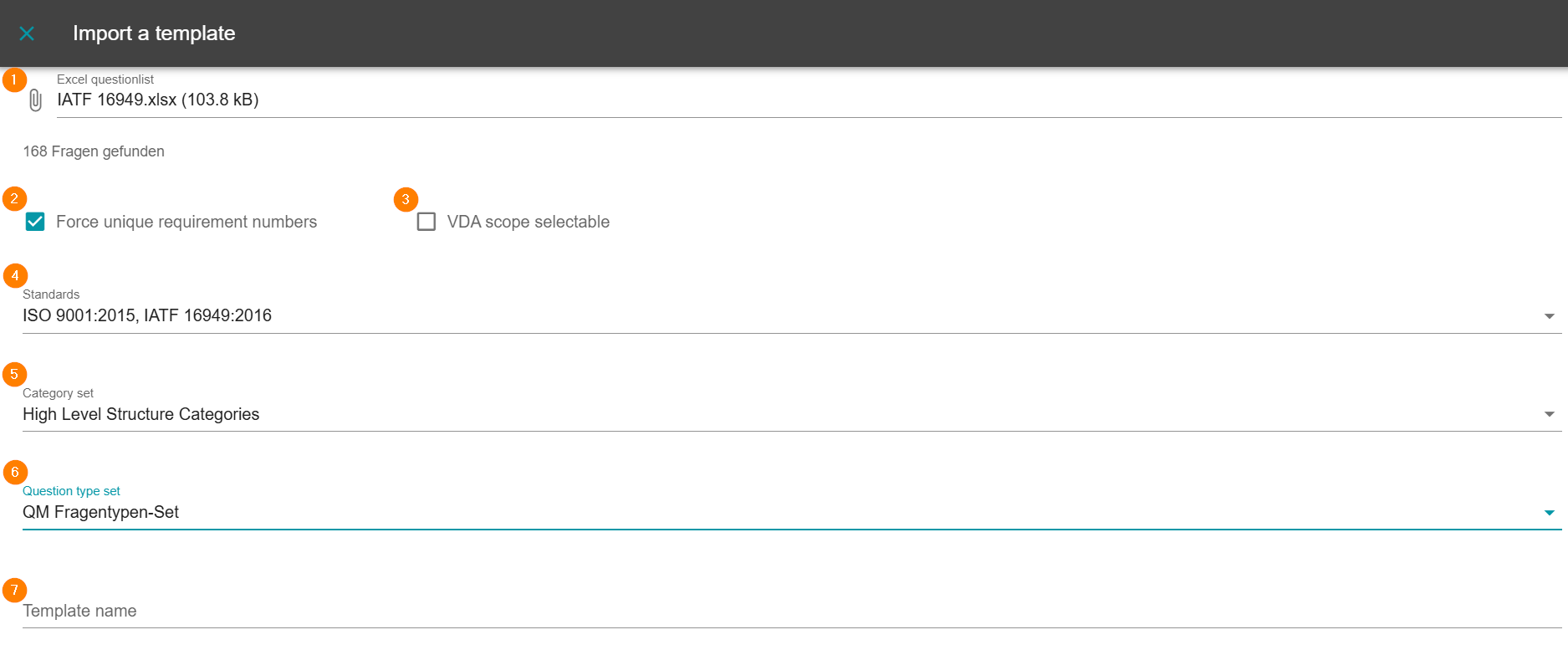
1 - Select file
Select the desired file with the new list of questions.
2 - Enforce unique requirement numbers
If the respective questions are to be assigned a unique question number, the box must be checked.
3 - VDA - Scope selectable
If the list of questions to be imported comes from the VDA-structure and is also to be evaluated according to it, the check mark must also be set here. If it is a regular list of questions, the box remains empty.
4 - Review standards
A standard can already be specified in the “Standard(xyz)” field in the template. If the standard ID is correct, it will already be displayed. However, it is not necessary to select a standard. In this case, the field can be left blank.
5 - Select category set
To ensure that the requirements in the question list are grouped logically, the appropriate category set must be selected. Category sets such as the High-Level structure are already stored in the AuditCloud. However, if you require different categories, you can send us the category IDs and descriptions before importing the actual question list so that we can add them to your Audit Cloud. Please note the information on multilingualism.
6 - Select question type set
Now you need to define the question type set. This is the set in which the desired weightings for individual requirements are defined. The weighting is used later to specify a factor with which the question is included in the evaluation. If you also work with knockout questions, these are also stored in the set.
7 - Enter the name of the question list
Finally, the name of the template must be specified. The name should be chosen so that the list of questions is clearly recognizable and there are no duplicates with existing lists of questions.
How does the template work?
A standardized process has been developed for creating question lists. The question list, chapter overview, and standard form the question list set. The following chapters will guide you through the individual templates. Please note that the question list set must be entered into AuditCloud in the desired form before the first audit.
In order to create a question list in AuditCloud correctly, it is essential that the template for the question list is made available. Categories are also necessary. However, adding a standard is optional. Standards already stored in AuditCloud can also be used. In this case, please let us know. Most ISO standards are already available.
Note on multilingualism:
AuditCloud supports German and English as system languages. In addition to the system language, you can use the content language to display your own content in multiple languages.
The multilingual options are indicated in the relevant sections of the manual. Please note that for AuditCloud to function properly, the fields relevant to multilingualism must be edited consistently. The additional language Spanish must therefore be inserted wherever multilingual content is entered.
If you only want to use German as the content language, you can leave the English columns blank or remove them.
1 - Question number (no)
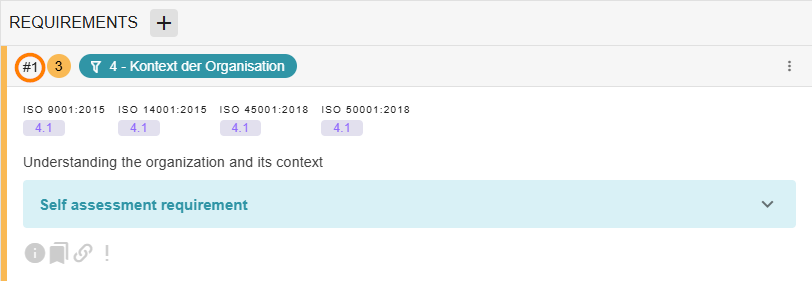
The question number is used to list your questions in the desired order. The question numbering can be simple (1, 2, 3, 4,...) or separated by dots (1.1, 1.1.1, 1.2,...).
If duplicate question numbers are used, “Force unique requirement number” must be deactivated during import. Otherwise, it will not be possible to import the question list.
2 - Weighting of the question (weight)
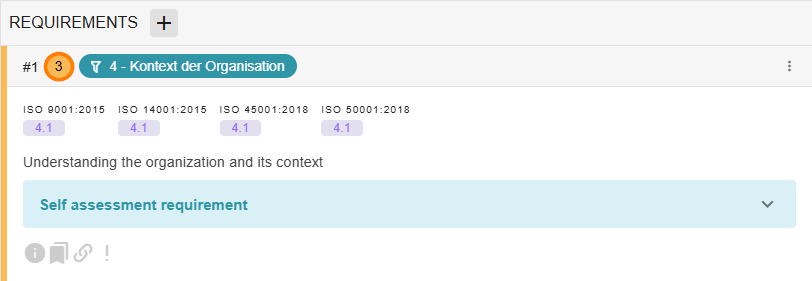
This field specifies the weighting of your questions. The weighting specifies a factor that determines how the question is included in the evaluation. If you are working with knockout questions, enter “K.O.” in this field.
3 - Special Question Type (specialQuestionType)
If you are working with “K.O.” or “asterisk” requirements, these are entered in the Special Question Type column. However, please note that there must not be an entry in both the ‘weight’ and “specialQuestionType” columns.
If there is an entry in both the “weight” and “specialQuestionType” columns, import is not possible.
4 - Standard (standard(xyz)) (optional)
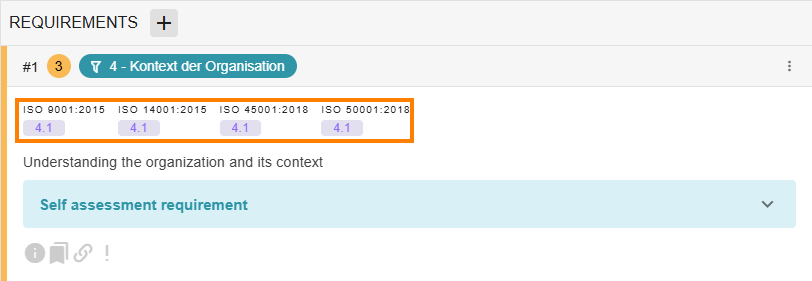
The column standard(standard-Id) references a standard chapter. To establish the link, a corresponding standard is required. You can either refer to a standard that already exists in AuditCloud or create a new standard using the standards sheet. For question lists with more than one standard, create an additional column for each standard and change the Id). Multiple standard chapters from a standard can be entered for a question, separated by commas.
The standard ID must match the one from the Audit Cloud. In addition, the standard chapters must be in the correct format: e.g., “ 1.1.1 ”
5 - Category (leaf_category_id)
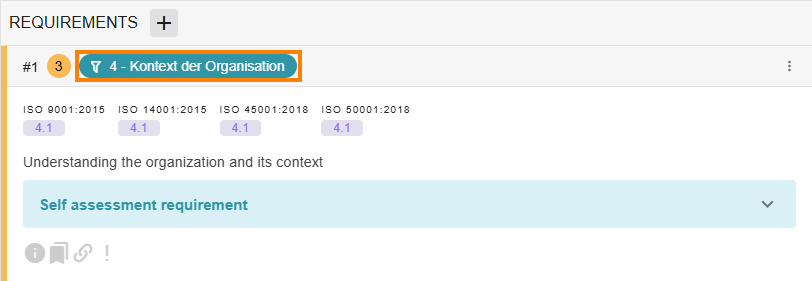
The category_id references a chapter in the list of questions. A corresponding category is required to establish the link. Please use the “Categories” sheet for this purpose. The IDs entered must match those in the “Categories” Excel sheet.
Categories are used to logically divide the list of questions. Later, in the “Report” audit status and in the downloadable report, the spider web diagram is formed based on the categories.
The chapters must already be available in AuditCloud.
6 - Category description (category_description)
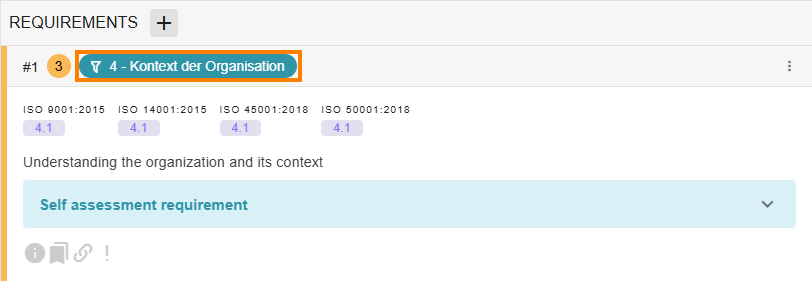
This field behaves similarly to the description of the categories. Here, too, multilingualism must be taken into account.
The text entered here is displayed as a note when you hover over the standard chapter of a question.
The columns in the Description category are not relevant for importing question lists and can therefore be deleted before importing.
7 - Question (text)
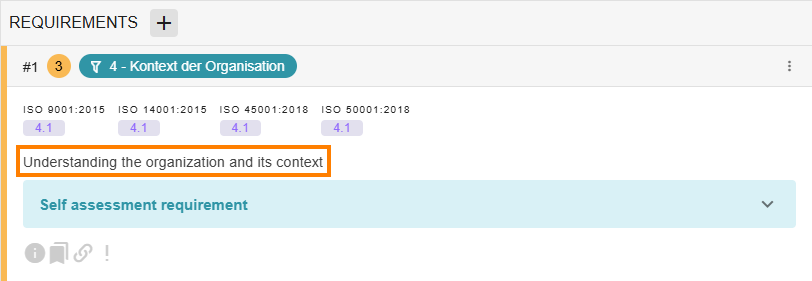
This is where the actual question is stored. German and English are integrated into the template by default. If you require additional languages, you can insert another column in the Excel template. The column name follows the nomenclature “text.country code.” For example, for Spanish questions, use “text.es ” or for Czech questions, use “text.cz .”
Please note the information on multilingualism in AuditCloud at this point.
If the list of questions is monolingual, please note that the column must only be labeled “text.” If the list is multilingual, please ensure that the language codes are correct.
8 - Selfassessment (selfassessment_text)
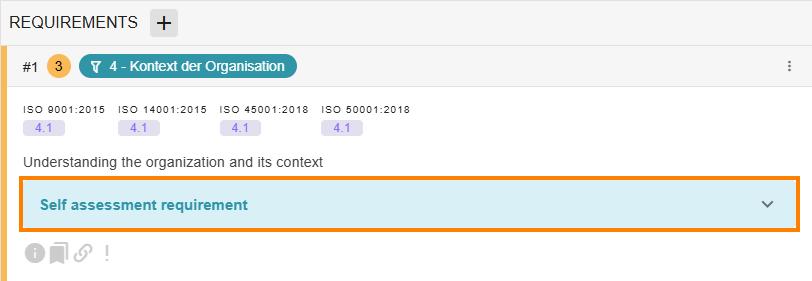
This field is designed in the same way as the text field. You have the option of adding self-assessment texts to the individual questions. These can then be selected in each audit and answered in advance, either internally or externally. To do this, the self-assessment must be activated at the beginning of the audit. For more detailed information, please refer to the Help Center page on
The self-assessment .
Auch hier bitten wir Sie die Mehrsprachigkeit zu beachten.
If the list of questions is monolingual, please note that the column is only labeled “selfassessment_text.” If the list is multilingual, please ensure that the language codes are correct.
9 - Hint (hint) (optional)
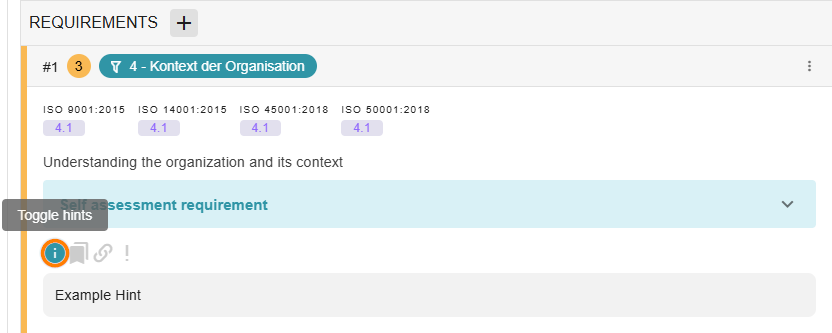
This field is designed in the same way as the text field. You have the option of providing notes on the individual questions. These can then be viewed in each audit. To do this, open the note using the info icon.
Here, too, we ask you to take multilingualism into account.
If the list of questions is monolingual, please note that the column is only labeled “hint.” If the list is multilingual, please ensure that the language abbreviations are correct.
10 - Label (labels)
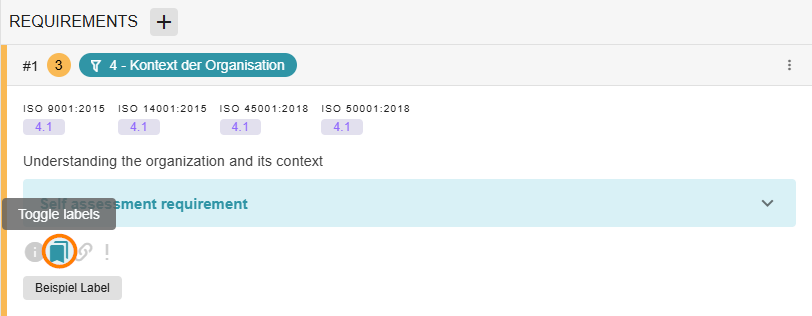
Labels are filterable notes for a question. They can be viewed via the label icon. They do not differ in functionality from labels added during the preparation of a question. However, they are displayed differently in the user interface. Multiple labels are separated by commas in the template.
It must be ensured that multiple labels in a request are correctly separated: Label1, Label2 (Label1 comma space Label2).
In addition, the same label may only be entered once per cell.
11 - External materials(links)
If you want to link to external material, you can use the links. The field can be used in several ways. You can attach multiple links to an audit question. To do this, insert the second link in a new line (Alt + Enter).
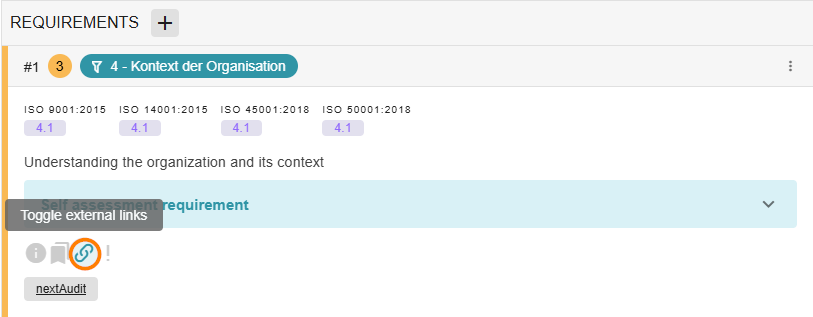
Option A: Display text serves as a placeholder for the link
Here, “Topic list” serves as the display text for the link. In the Excel list, the entry follows the format “Display text:https://www.YOUR_URL.de.”
It is important that you insert the complete URL with “https://” or “http://.” In addition, there must be no space after the colon. The URL follows directly after this.
Multiple links must be separated from each other in the Excel template with a line break. The keyboard shortcut for this in Excel is Alt+Enter. The links in the Excel cell must not be stored as hyperlinks. Right-clicking on the column allows you to remove all hyperlinks at once. Only the text in the cell will remain.
Option B: Without display text
Here, it is sufficient to enter the URL including http:// in the Excel cell. Multiple links should be created as in option A.
12 - Required proof (required_proofs)
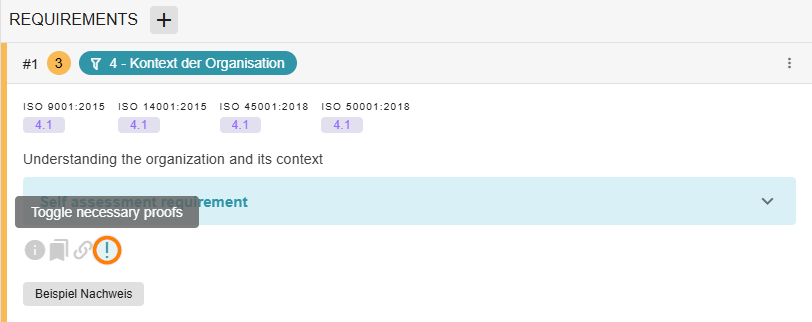
Required evidence can be entered in this field with line breaks. In Excel, use the Alt + Enter combination to ensure that the individual pieces of evidence remain in a single cell. They can serve as a source of information for the auditor regarding which documents need to be considered and, if necessary, attached. In AuditCloud, the evidence can be displayed via the exclamation mark.
13 - May the question be duplicated? (isDuplicable)
In the last column, you can specify whether the requirements can be duplicated in the audit or whether the requirement should only be answered once in the audit. However, the format must be observed:
-
Either “TRUE” or “FALSE” must be entered in the cells.
Before importing, you must check that all cells in the columns are in the correct format.
Common mistakes
It is important for the import that all columns, rows, and cells are unformatted. To remove previous formatting, please follow these steps:
-
Select the entire Excel page with Ctrl+A.
-
Open the “Home” tile in the editing bar.
-
Go to the “Edit” tab.
-
Click on the eraser and select “Clear Formatting.”
Once the relevant columns have been formatted and all the required data is available, save the Excel file for import.
Then switch to AuditCloud and open “Administration.”
In addition, three things must be done in the system before importing the question list:
-
Categories must be created.
-
Weightings/question types must be available.
-
Weightings/question types must be available.